Fix “The PivotTable field name is not valid” in Excel
Acrylic
Find a blank source header, correct it, and rebuild a PivotTable without changing the data.
Excel can reject a PivotTable before you even reach the field list. One cause is an empty cell in the source header row. Start by checking the selected range and its first row.
Tested in Excel for Mac 16.94, with English menus. Work on a copy. Download the practice workbook.
What causes this example to fail?
The source has three columns: Region, an empty header, and Sales. The four sales values are 100, 80, 120, and 150. Their total is 450.
The empty cell is B1. The product data beneath it is present; only its column name is missing.
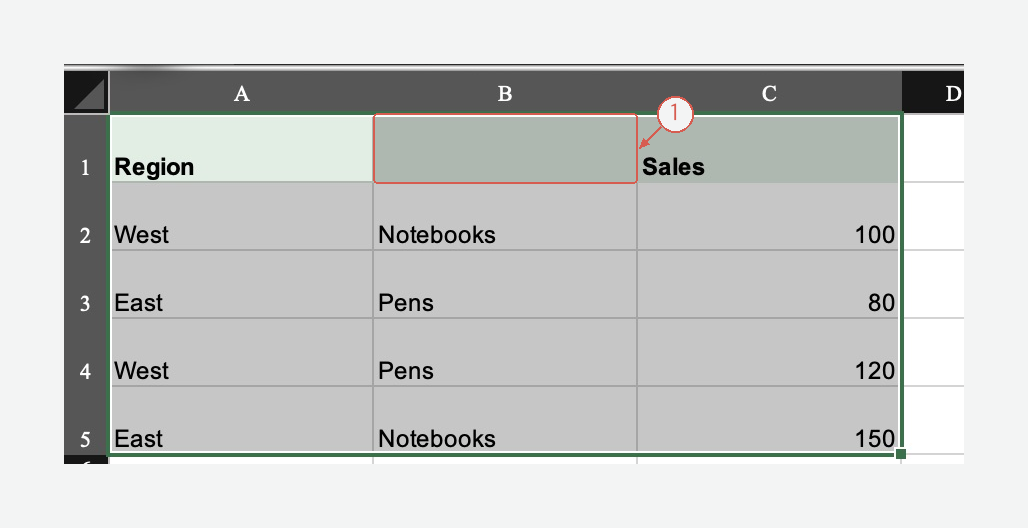
The rectangle marks the missing header. Do not delete the product column to get around the error. View full-size screen
1. Check the source range
Select A1:C5, including the header row. Choose Insert → PivotTable, and check that the source range is the data you intended to summarize. In this example, trying to create the PivotTable produces the error below.
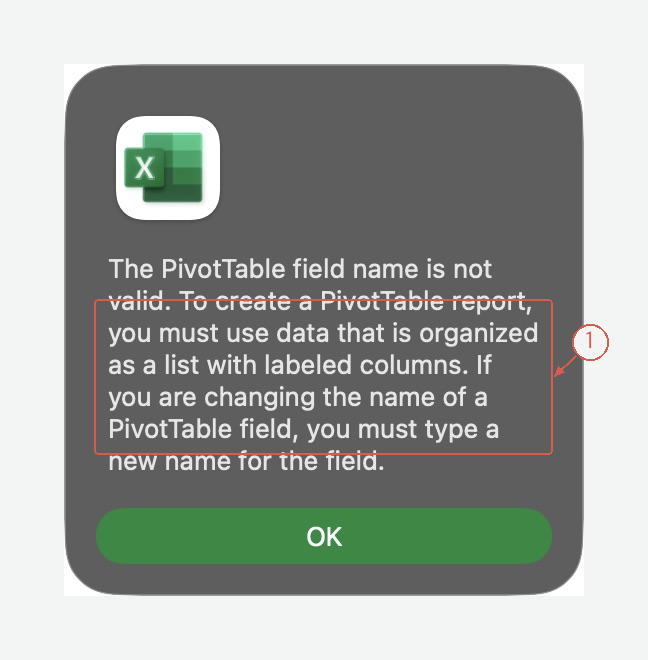
This is the actual error from the practice data. A blank source header prevents Excel from naming one of the fields. View full-size screen
A range that extends into extra empty columns can cause the same problem. Check the source selection as well as the visible data.
2. Give every source column a header
- Dismiss the message and cancel the create dialog.
- In B1, enter Product.
- Check that A1 is Region and C1 is Sales.
- Select A1:C5 again and create the PivotTable on a new worksheet.
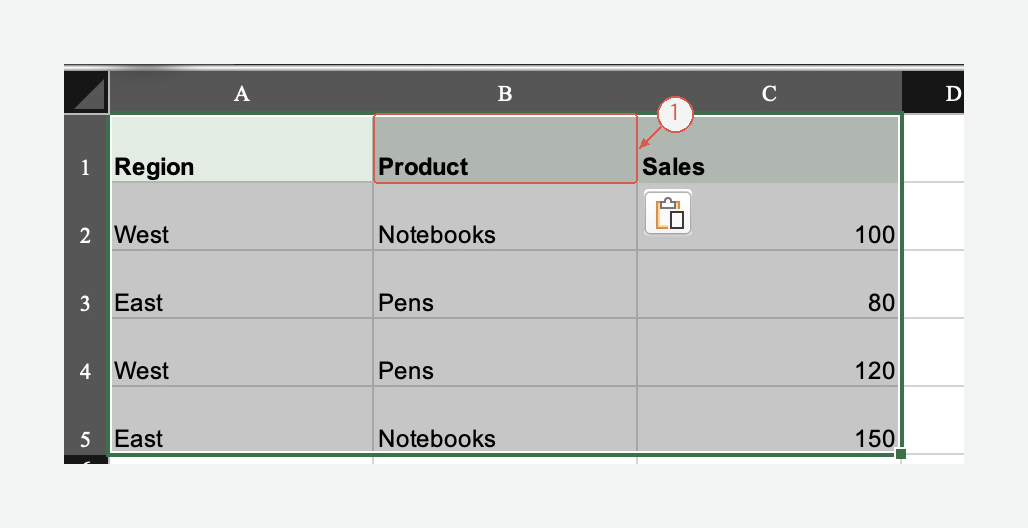
All three columns now have names. The four source records and sales values are unchanged. View full-size screen
Use one row of clear, distinct headers. Avoid merged cells in that row. A decorative report title above the table is not a substitute for column names.
3. Confirm the result
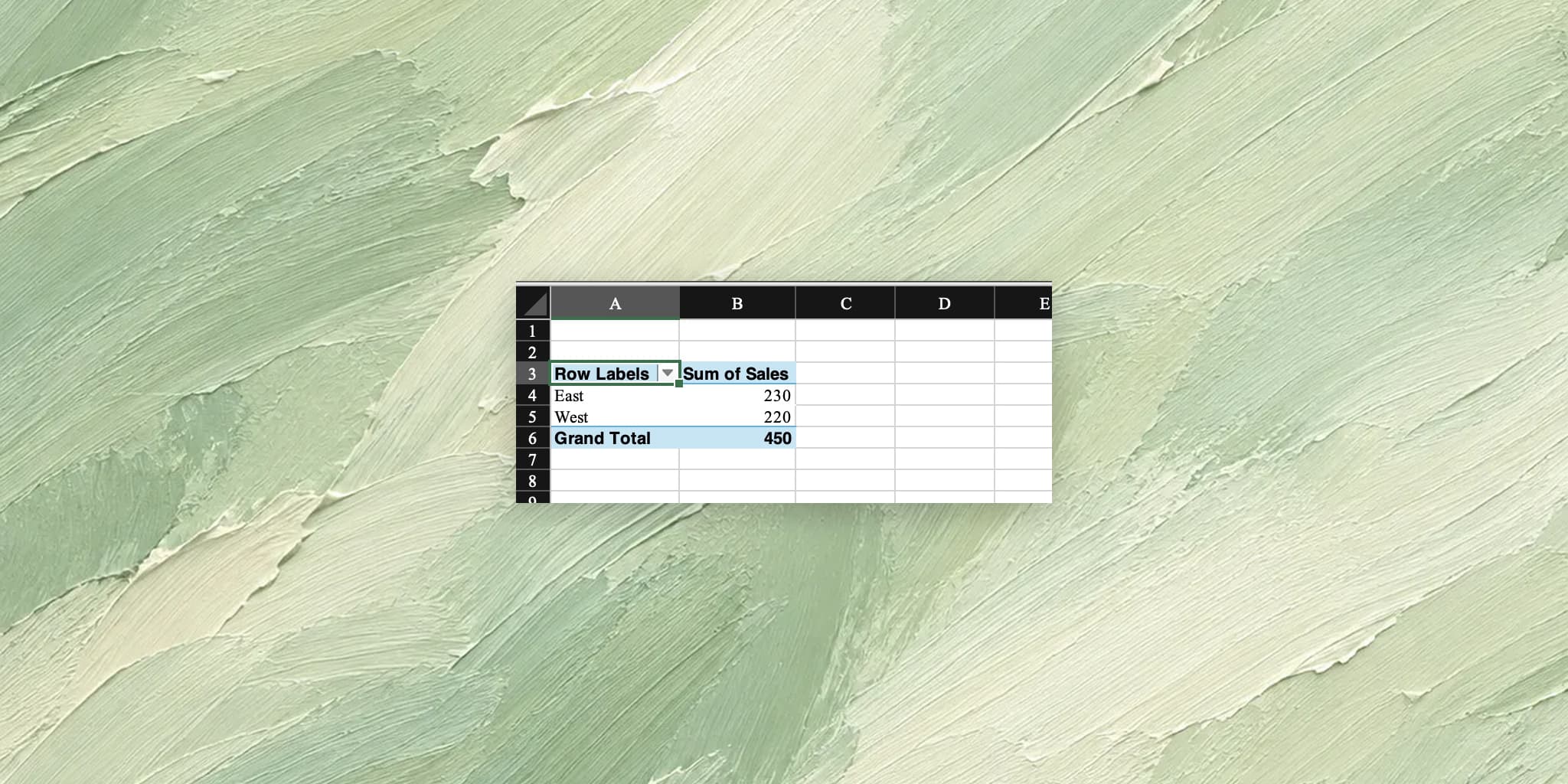
In the field list, add Region to Rows and Sales to Values. For this numeric source, the result uses Sum of Sales.
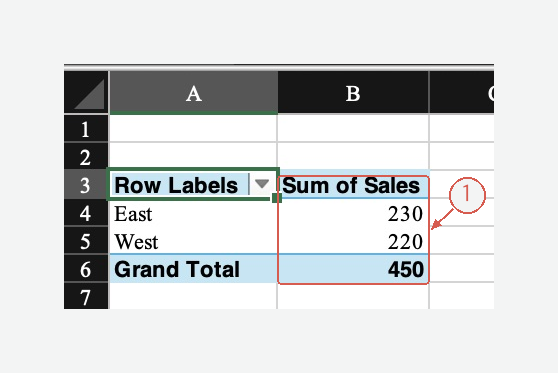
East is 80 + 150 = 230. West is 100 + 120 = 220. The grand total matches the source: 450. View full-size screen
If Values shows Count instead of Sum, check whether the source amounts are stored as text. Changing the aggregation is useful only after you have checked what the source contains.
If the error remains
Look across the entire selected header row for another blank cell. Check for merged headers and an accidentally selected title row. If the workbook uses a named range or an Excel table, inspect what that source actually includes.
The blank header is the cause demonstrated here; it is not the only possible problem in every workbook.
Prepare cleaner source data with Acrylic
Before building a PivotTable, you can ask Acrylic to review an XLSX source table:
Identify missing or repeated column names and amounts stored as text. List the issues and proposed fixes. Keep the source records and values unchanged.
Review the suggestions, then build and refresh the PivotTable in Excel. Explore Acrylic.