How to use Presenter View in PowerPoint without showing your notes
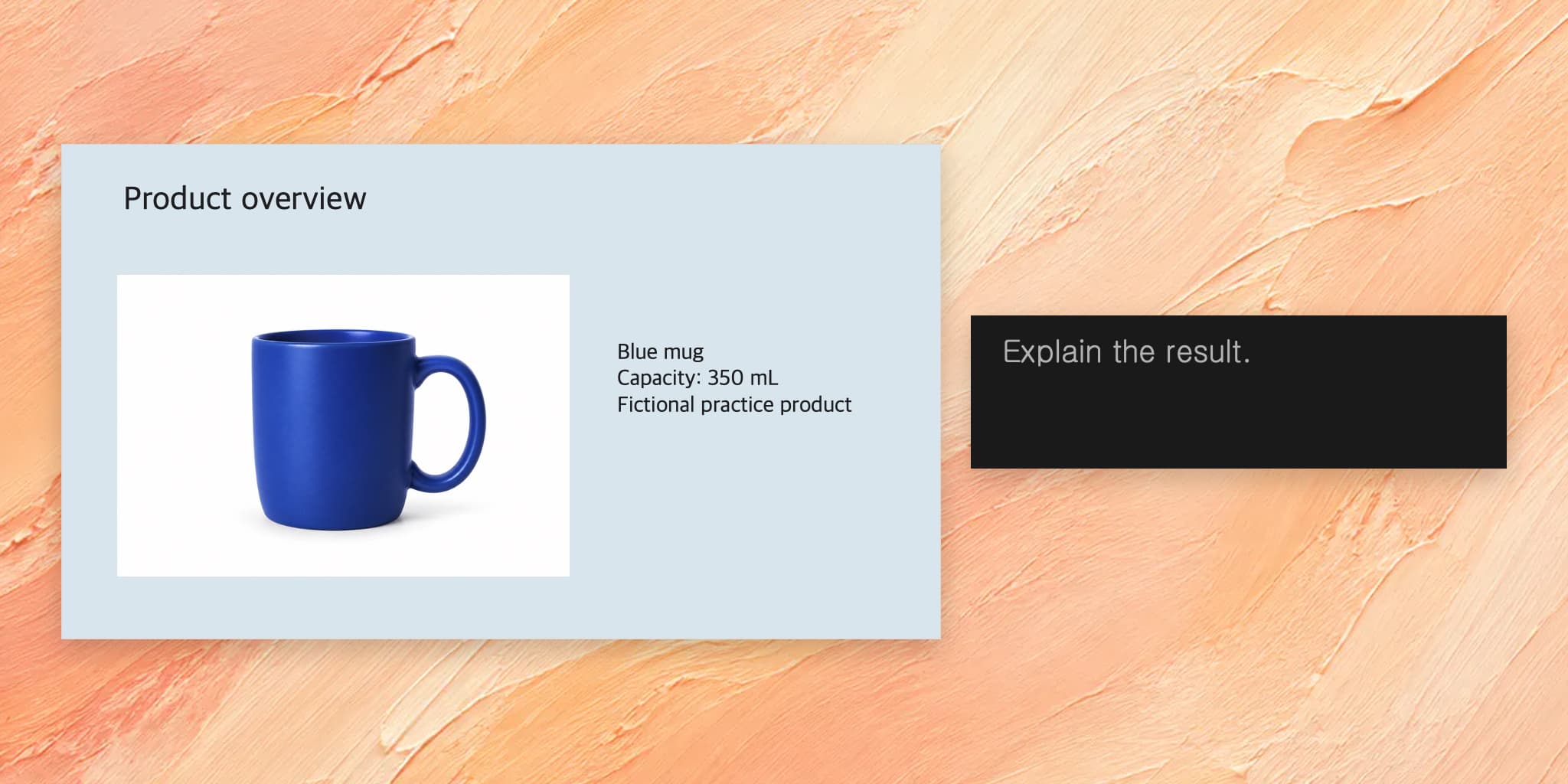
Acrylic
Open Presenter View on a Mac, check notes as slides advance, and verify the audience screen before presenting or sharing online.
Presenter View puts your notes, the current slide, and the next slide on your screen. The audience should see the slide show. Before relying on that separation in a meeting, rehearse the controls and check the screen you are sharing.
These screenshots use Microsoft 365 PowerPoint 16.94 for Mac with English menus. The walkthrough was checked on one screen. An external display and an online meeting were not part of this test.
Prepare two slides with different notes
The four-slide file contains fictional business data and a generated practice product photo. Open a copy and select slide 2, Product overview. Its note is “Explain the result.” Slide 3, Work schedule, has “Ask for a decision.” The different sentences make it easy to check whether the notes follow the selected slide.
1. Open Presenter View from the selected slide
- Select slide 2 in the thumbnail pane.
- Open the Slide Show tab.
- Click Presenter View.
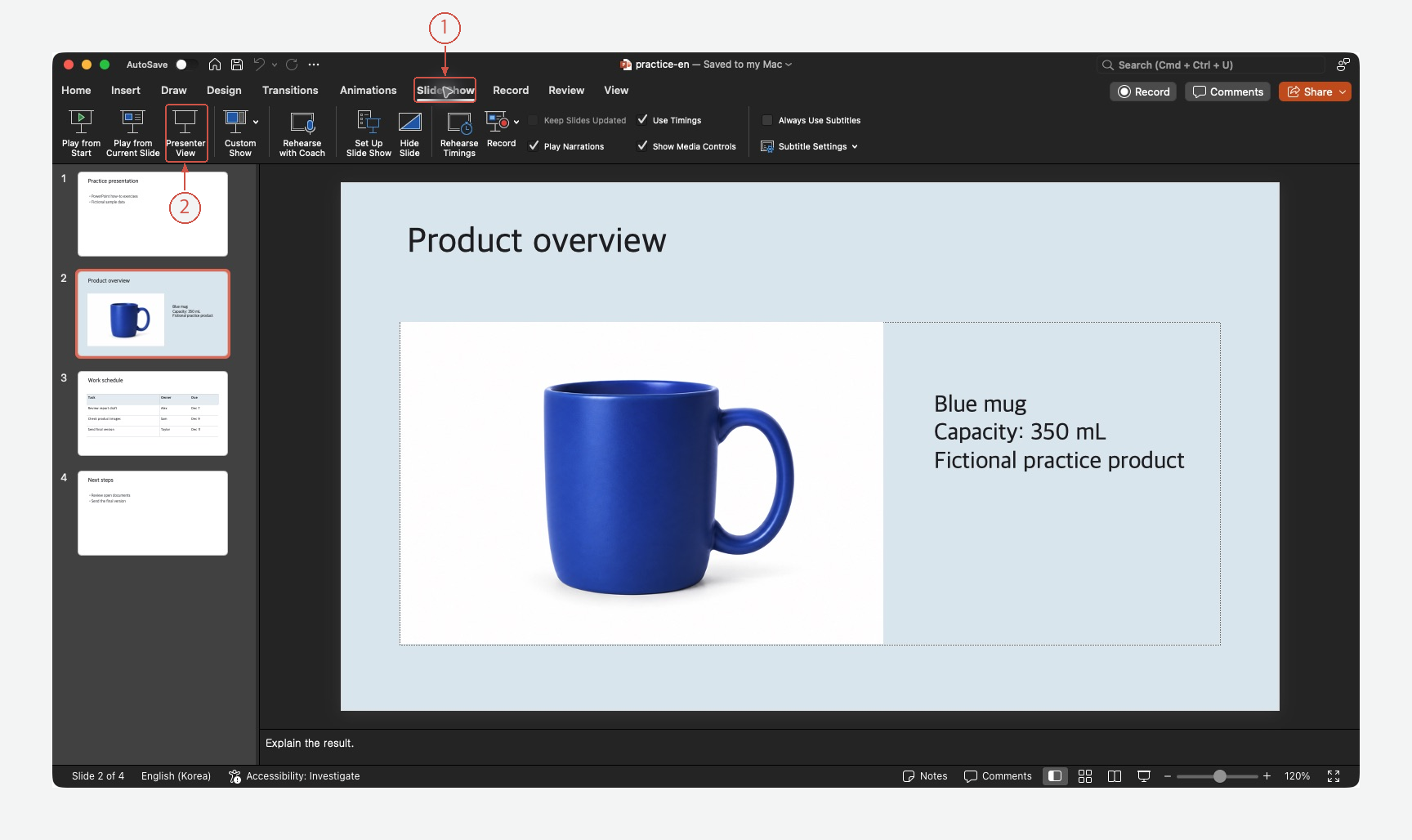
In this Mac version, Presenter View is a button. It starts from the selected slide in this walkthrough. Instructions that refer to a Windows “Use Presenter View” checkbox may show a different interface.
2. Check the current slide and its note
You should see Product overview as the current slide, Work schedule as the next slide, and “Explain the result.” in the notes area. The slide counter should read Slide 2 of 4.
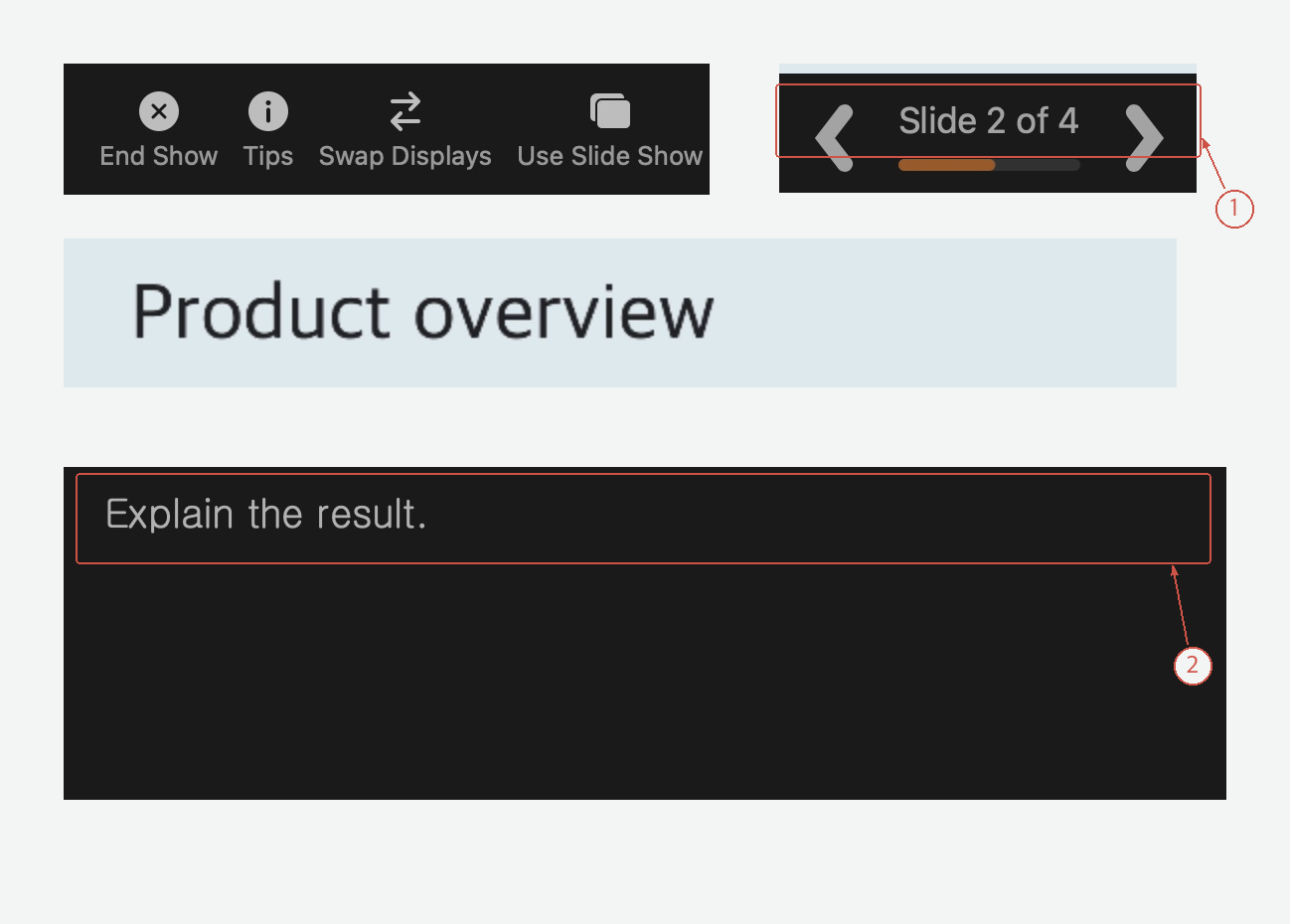
The image shows details cropped from the same actual Presenter View screen, arranged at their original pixel size. It includes the top controls, the slide counter, the current title, and the note.
| Control | What to check |
|---|---|
| End Show | Returns to editing when the rehearsal is finished |
| Swap Displays | Relevant when the presenter and audience views are on the wrong connected displays |
| Use Slide Show | Changes from the presenter interface to the slide-show view |
On a single screen, this is a rehearsal of the presenter interface. It does not prove what an audience on another display can see.
3. Advance once and confirm that the note changes
Use the next-slide arrow to move to slide 3. Check Work schedule, Slide 3 of 4, and the new note, “Ask for a decision.” Then choose End Show.
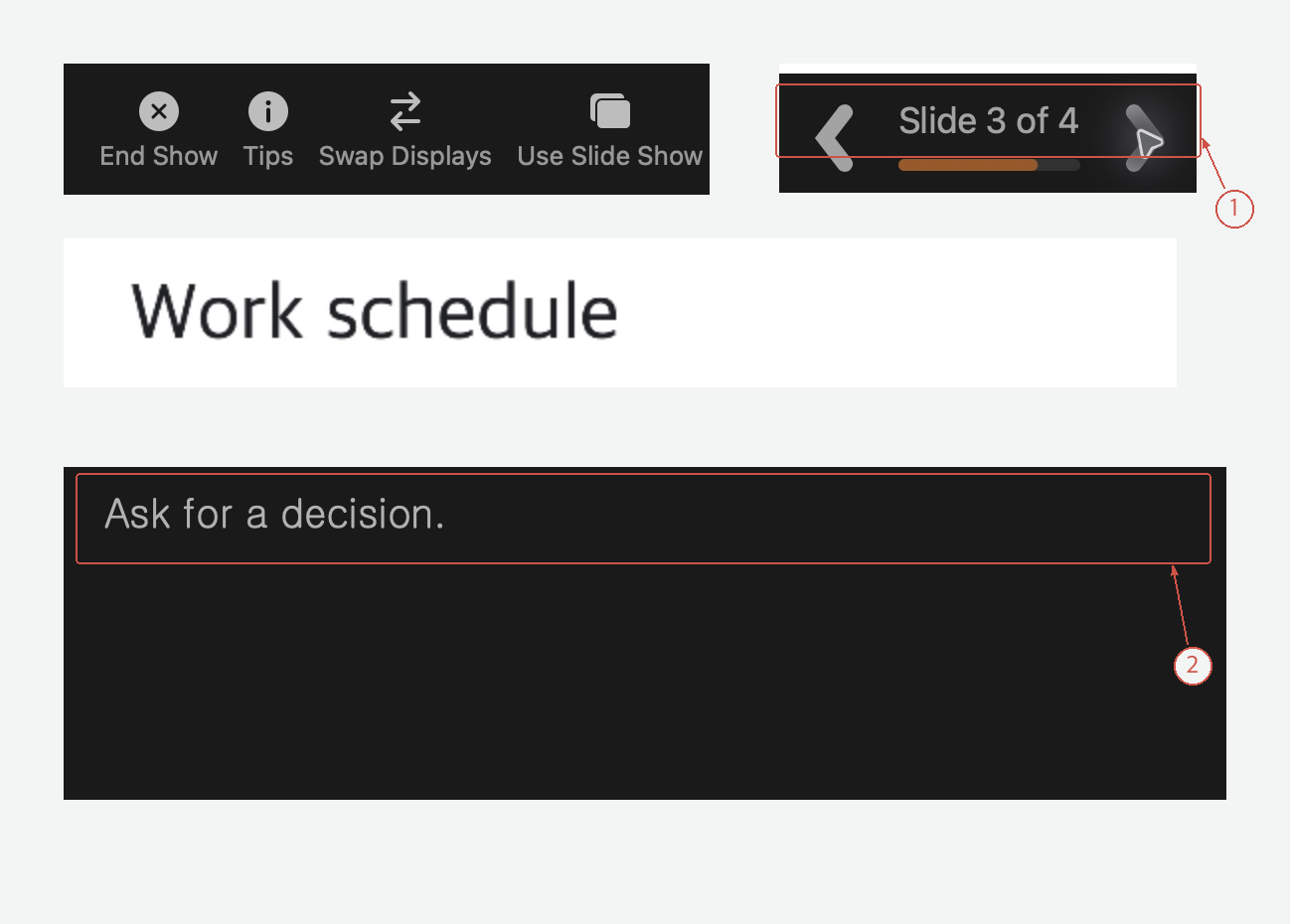
These details are also cropped from one native screen. If the note is missing, end the show, select that slide in normal editing view, and check its Notes pane. Text typed on the slide itself is visible to the audience; it is not a private speaker note.
Before presenting to other people
For a connected display, check whether the desktop is extended or mirrored and verify which screen shows the slide show. If you use Swap Displays, check both screens again.
In an online meeting, inspect the meeting app's sharing preview and select the intended slide-show window or screen. Sharing the whole desktop that contains Presenter View can reveal your notes. A rehearsal with another participant is more reliable than judging by your own screen alone.
Turn long notes into usable speaking cues
After the view works, shorten notes that are difficult to scan while speaking. In Acrylic, give the slide range and the facts that must stay intact.
Keep the original file. Shorten the speaker notes on slides 2–4 to three speaking cues per slide. Preserve the product capacity, names, dates, and slide order. Show me the revised notes for review.
Compare the edits with the source, then rehearse the notes and screen sharing in PowerPoint. Explore Acrylic