Why is my PowerPoint file so large? What to check before sending it
Acrylic
Find the likely source of a large PPTX, compress pictures with the right scope, and check that the smaller copy is still usable.
A large PowerPoint file may contain oversized pictures, video, audio, or other embedded material. Start with the likely cause. Compressing pictures can help a photo-heavy deck, but it will not fix a file whose size comes mainly from video.
This walkthrough uses Microsoft 365 PowerPoint 16.94 for Mac with English menus. It compresses pictures at 150 ppi while keeping cropped image data. Keep the original and work on a delivery copy.
Prepare a copy to compare
Download the picture-compression practice PPTX
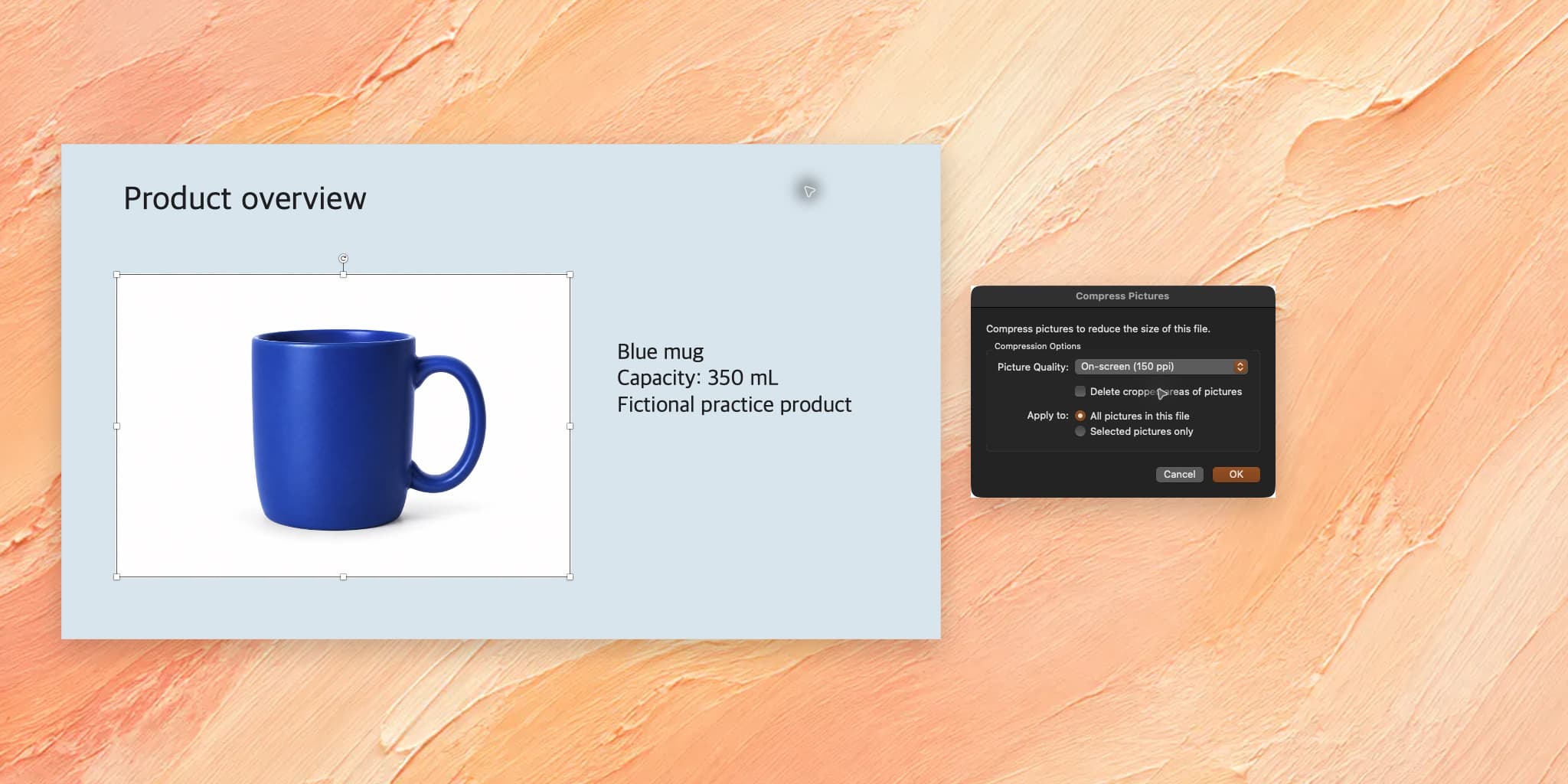
The four-slide file contains fictional data and a generated mug photo on slide 2. Duplicate the file and note its size in Finder before changing it. The reduction depends on the images and any compression already applied.
1. Select a picture and open Compress Pictures
- Open slide 2, Product overview.
- Select the mug photo.
- Choose Picture Format → Compress Pictures.
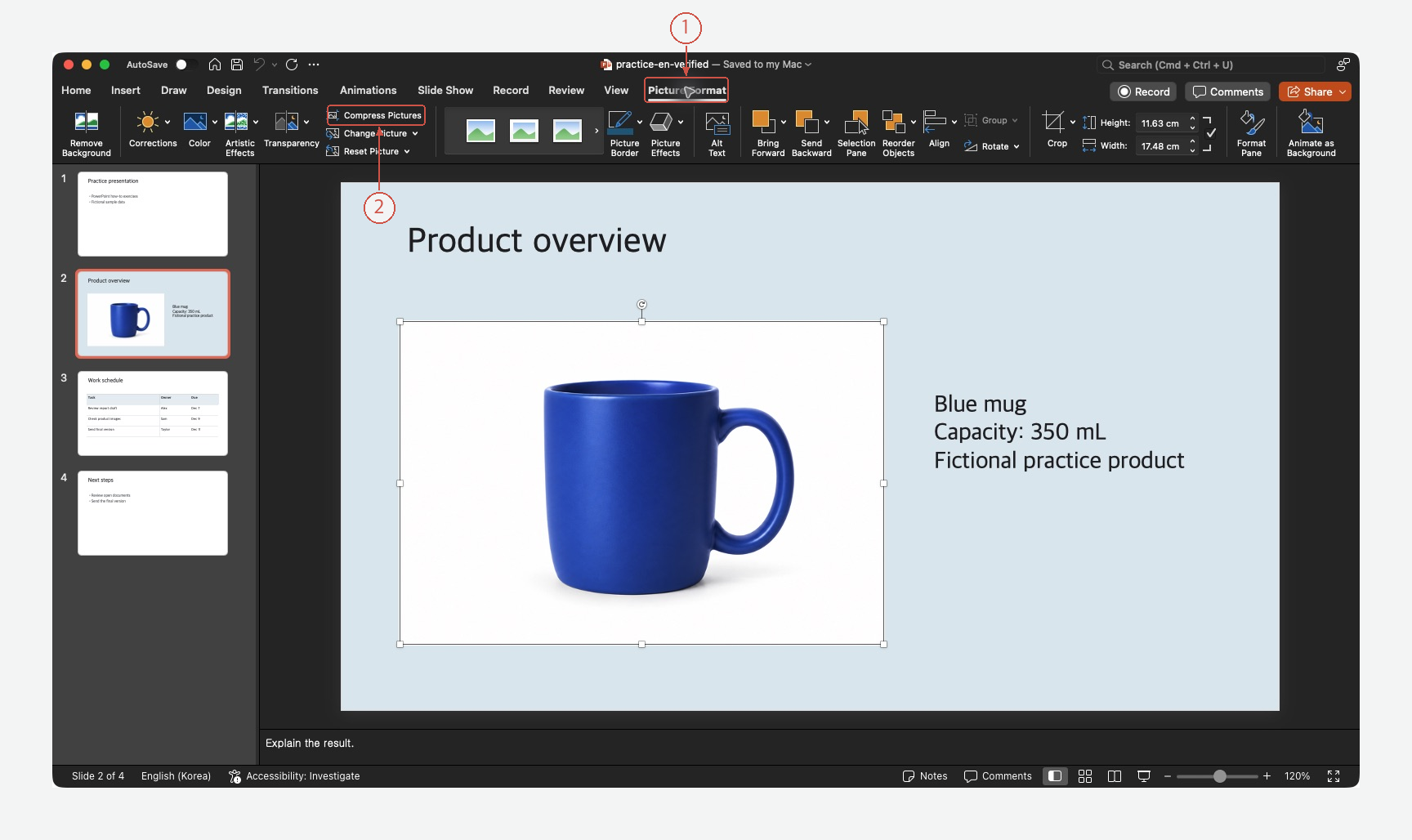
Selecting a picture opens the relevant tools. The dialog then lets you choose whether the operation affects that picture or all pictures in the file.
2. Choose the quality and scope separately
- Set Picture Quality to On-screen (150 ppi).
- Choose All pictures in this file.
- Leave Delete cropped areas of pictures unchecked.
- Apply the settings.
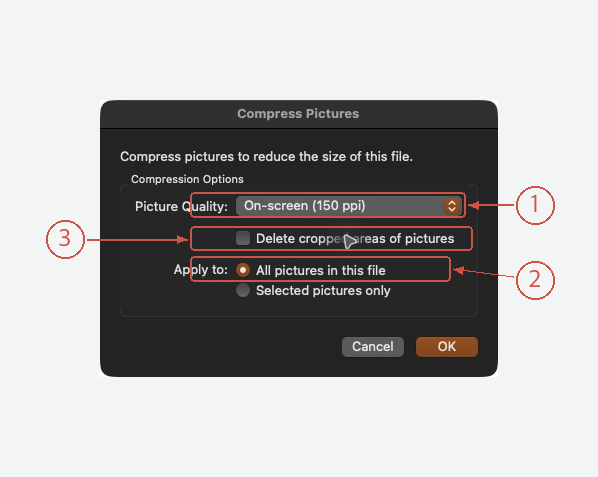
| Setting | Reason to choose it |
|---|---|
| On-screen, 150 ppi | A starting point for a screen-viewing copy; inspect fine detail afterward |
| All pictures in this file | Apply the operation across the presentation |
| Selected pictures only | Test one picture first |
| Delete cropped areas of pictures | Remove hidden image data when you no longer need to reframe it |
This exercise keeps the hidden areas. Removing them is a separate decision from choosing a lower image quality. Keep the original if you may need a different crop later.
3. Save, compare the size, and inspect the picture
Save under a different name, then compare the two files in Finder.
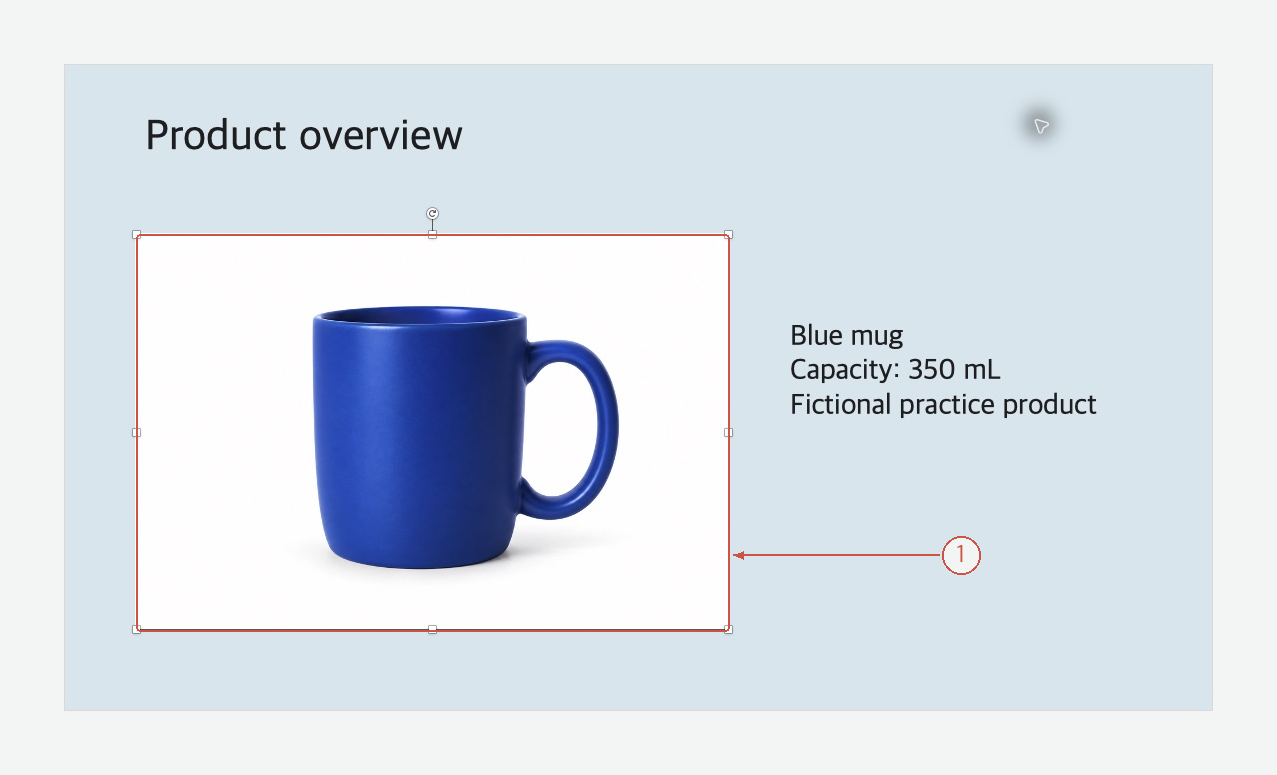
The saved practice copy became smaller. The editing view still showed the mug and the “Capacity: 350 mL” text. Your own result may differ; there is no fixed percentage reduction.
Inspect pictures at the size people will actually see them. Look especially at text inside screenshots, thin diagram lines, and product details. A small preview can hide a loss of clarity.
The file is still too large
| Likely cause | Next check |
|---|---|
| Pictures already compressed | Little further reduction may be available |
| Video or audio | Length and size of the inserted media files |
| Other embedded material | Unneeded objects or repeated source material |
The Mac dialog shown here compresses pictures. Do not expect it to compress embedded video as well. Check the largest source material before lowering every picture to the minimum quality.
Make the delivery copy easier to read
If the deck also needs shorter wording, Acrylic can help edit the PPTX text. Specify what must remain unchanged.
Keep the original file. Tighten the titles and descriptions on slides 2–4. Preserve the 350 mL capacity, owners, dates, and slide order. List the wording changes for review.
Review the facts, then finish image compression and output checks in PowerPoint. Explore Acrylic