How to add captions in Word and keep figures numbered

Acrylic
Insert numbered captions, update them after moving figures, and check the relationship between images and their descriptions.
Typing “Figure 1” under an image works until you insert a new figure ahead of it. Word captions use number fields, so you can update the sequence instead of editing each number by hand.
These steps were checked in Microsoft 365 Word for Mac 16.94, with English menus. Windows and web menus differ. Work on a copy of your document. Start with the one-chart practice document. The chart uses fictional data.
1. Add a caption below each image
- Select the first image.
- Choose References → Insert Caption.
- Select the label Figure and the position Below selected item.
- Add a short description after the generated number, such as “Items processed by month (fictional data).”
- Confirm that the caption appears in its own paragraph below the chart.
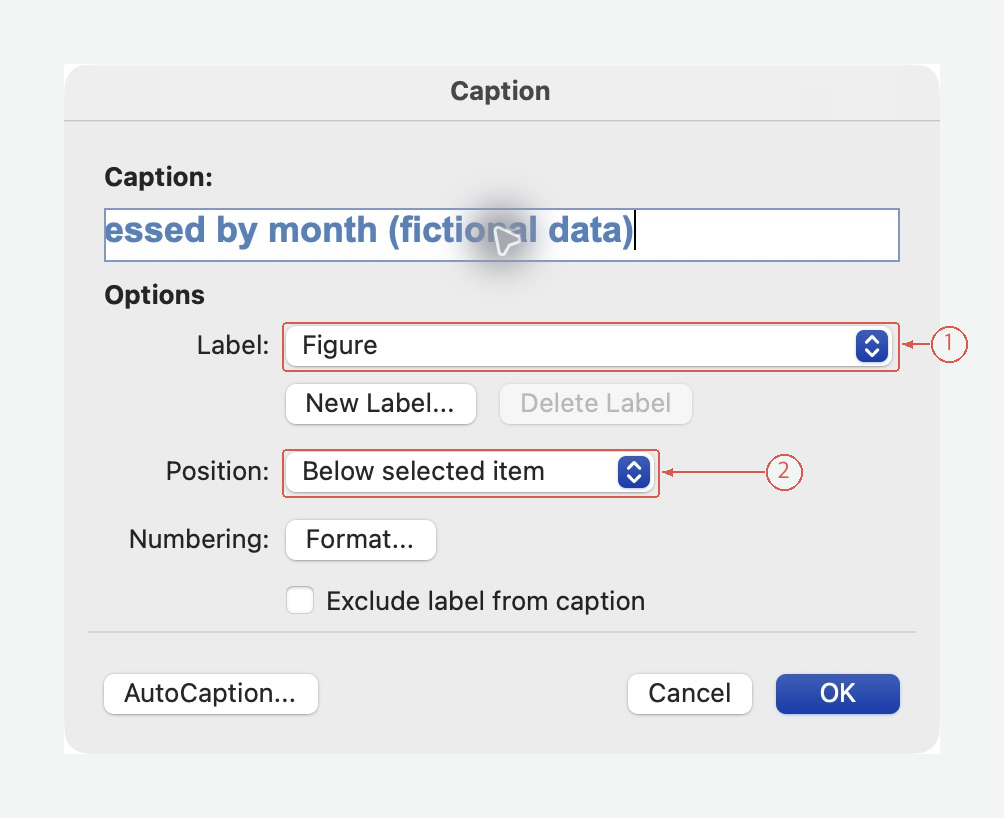
Leave the generated label and number in place. Add your description after them; a long description can scroll horizontally in the input box. View full-size screen
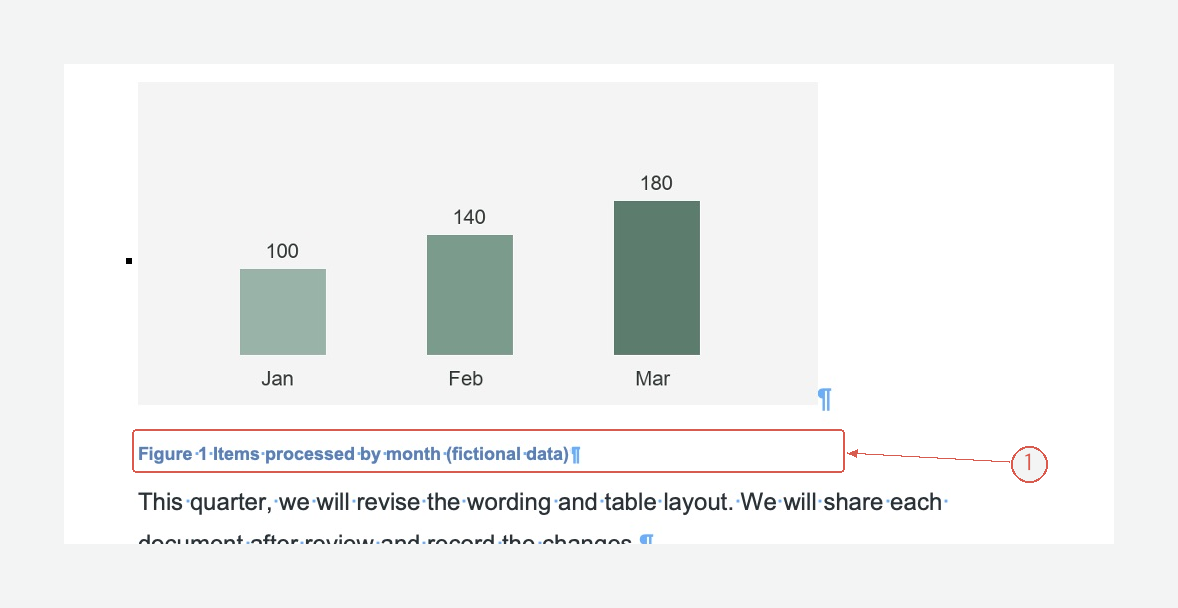
The caption describes the chart actually shown. It does not claim a cause or a result beyond the sample data. View full-size screen
The first caption should read Figure 1. Leave the generated number in place; type the description after it. Use Table for tables if you want their numbering kept separate.
A useful caption identifies what the image shows. “Results” is less helpful than “Open requests by week, September 2026.” Include units or scope when the image needs them to be understood.
2. Keep the image and caption together
An inline image and its caption occupy separate paragraphs. When moving them, select both so the description does not stay behind. Check the new page break after moving the pair.
If the caption lands on a different page, inspect the paragraph pagination settings. For an image paragraph followed by a caption, Keep with next on the image paragraph can help keep the pair together. Floating images require different handling; do not assume their captions move as a single object automatically.
3. Add another figure and check the sequence
For a numbering test, add a second copy of the sample chart in a new paragraph. Select that picture before choosing References → Insert Caption again. Use the description “The same sample chart, added to test numbering.” This second chart is a practice copy of the same data.
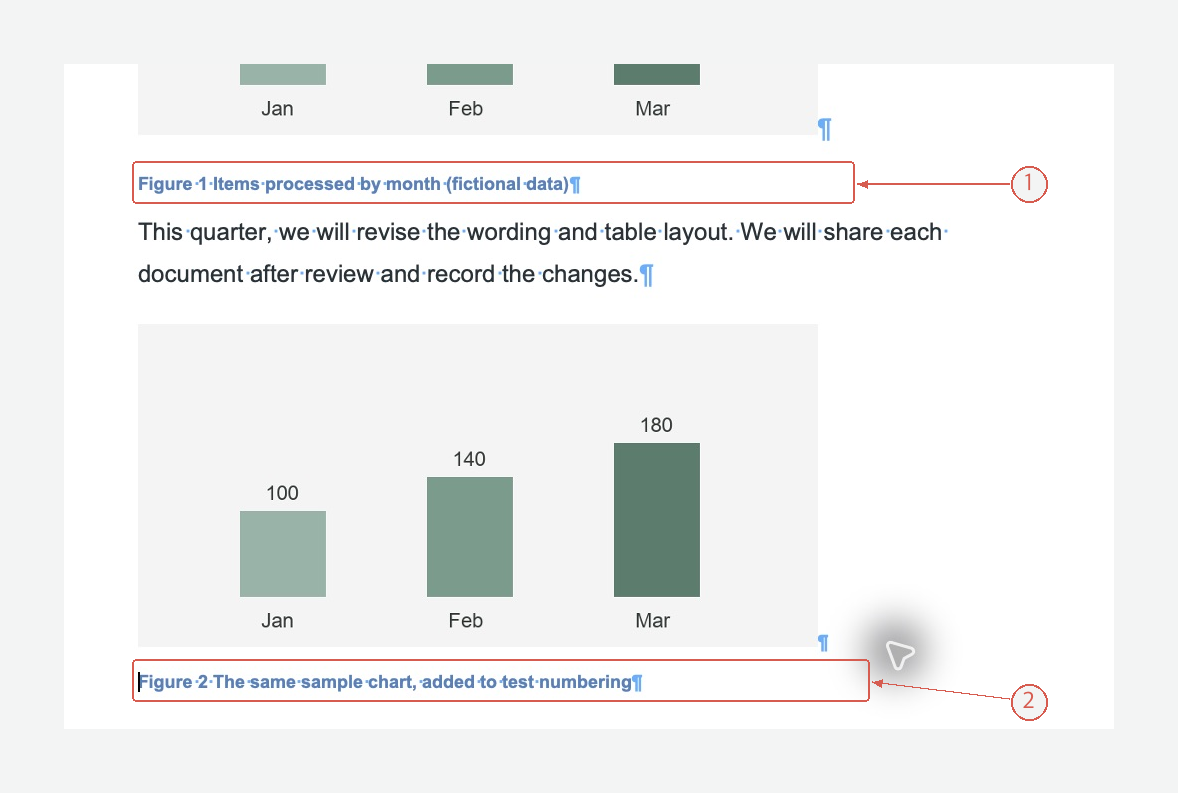
The second caption is below its chart in a separate paragraph. Both captions use Word SEQ fields; the numbers were not typed manually. View full-size screen
After moving figures, select the document with Command+A and use F9 to update fields. Some Mac keyboards require Fn+F9. Then check every caption in reading order. A manually typed “see Figure 2” does not update with the caption; use a cross-reference when that reference must follow the number.
The caption appears beside the picture
Make sure the picture is inline, select the picture itself, and insert the caption with Below selected item. If you insert a caption at a text cursor beside an inline image, it can land in that same paragraph. Keep the image and its caption in separate paragraphs before arranging them.
A number does not change
Check that it was inserted with the caption command and uses the intended label. A manually typed number is not part of the sequence.
Write descriptions that match the figures
If a report has many figures, Acrylic can help you edit the surrounding DOCX text. Keep the review tied to what each figure actually shows:
Shorten these figure descriptions. Preserve dates, units, and sample sizes. Do not claim a trend or cause that the supplied data does not establish. List any description that needs checking against the image.
Review the wording, then refresh the fields and inspect the layout in Word. Explore Acrylic