How to make a fillable form in Word with clear input fields
Acrylic
Build and test a Word for Mac form with a name field, typed date, and checkbox using Developer and Protect Form.
Underscores can shift as soon as someone types over them. A Word form gives the recipient a defined place to enter an answer while keeping the labels in place.
These steps were checked in Microsoft 365 Word for Mac 16.94, with English menus. Windows and web menus differ. Work on a copy of your document. This example uses Mac legacy form fields without macros. It does not use the Windows Date Picker or modern content-control menus.
1. Plan three clearly labeled answers
Start a blank document with these labels on separate paragraphs:
| Label | Mac control | Example answer |
|---|---|---|
| Requester name | Text Box, Regular text | Alex Morgan |
| Needed by | Text Box, Date | 2026-10-26 |
| Manager notified | Check Box | Checked or unchecked |
Keep each label outside its field. A label such as “Needed by” should remain visible after the recipient enters a date.
2. Show Developer and add the fields
If Developer is hidden, choose Word → Preferences → Ribbon & Toolbar, check Developer under Main Tabs, save, and close Preferences.
- Put the cursor after Requester name: and add one space.
- Choose Developer → Text Box. Its tooltip is Text Form Field.
- After Needed by:, add another Text Box.
- After Manager notified:, add Developer → Check Box.
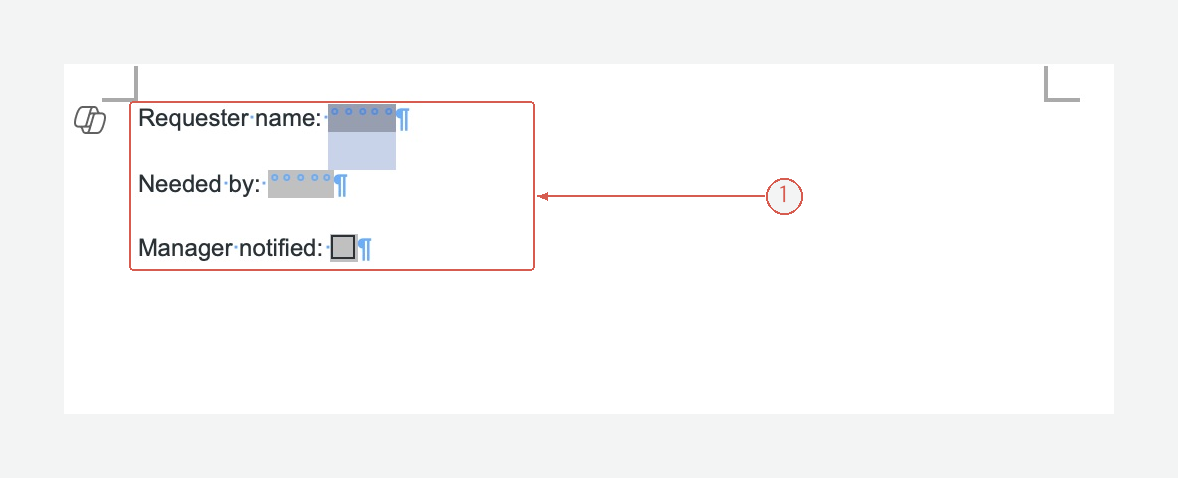
The controls are part of the document. They are different from text boxes used to position a block of text on a page. View full-size screen
3. Set the input options
Select the name field and choose Developer → Options. Keep Type → Regular text, set Maximum length to 60, and give the bookmark a useful name such as RequesterName. Keep Fill-in enabled selected, then click OK.
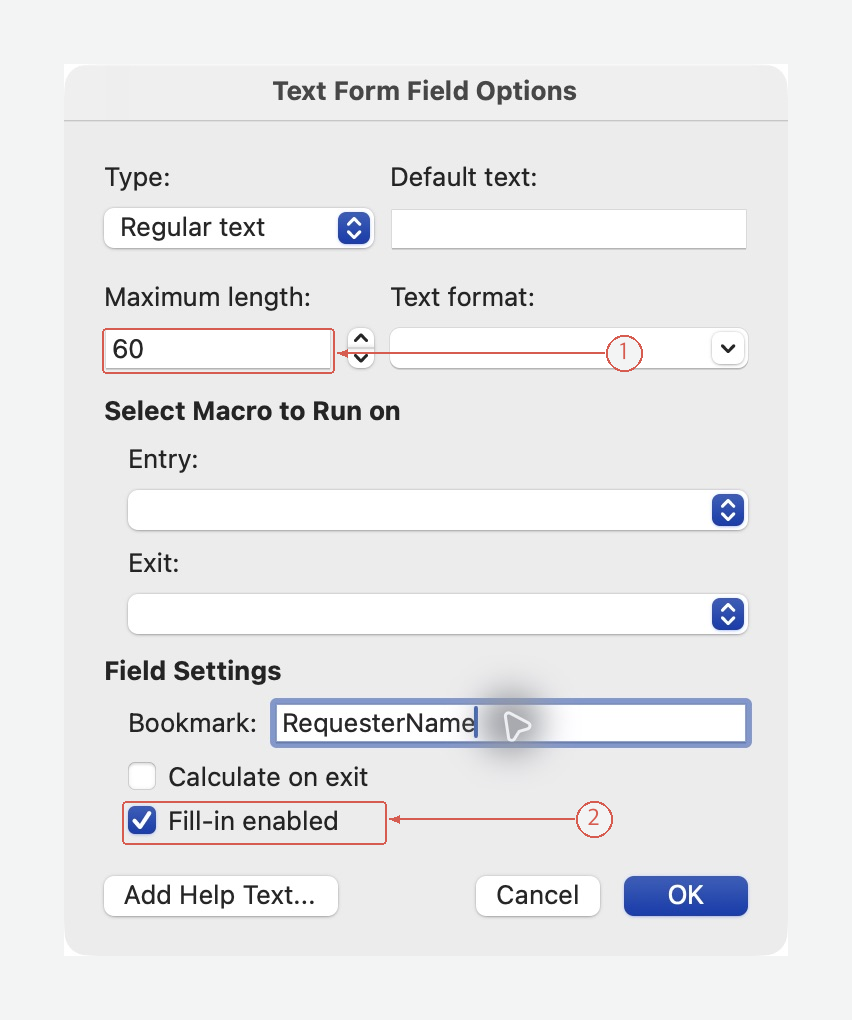
The length is a practice limit for this form. Choose a limit that will not reject legitimate names. View full-size screen
Select the Needed by field and open Options again. Choose Type → Date, enter yyyy-MM-dd as the date format, and use the bookmark name NeededBy. Keep Fill-in enabled and confirm.
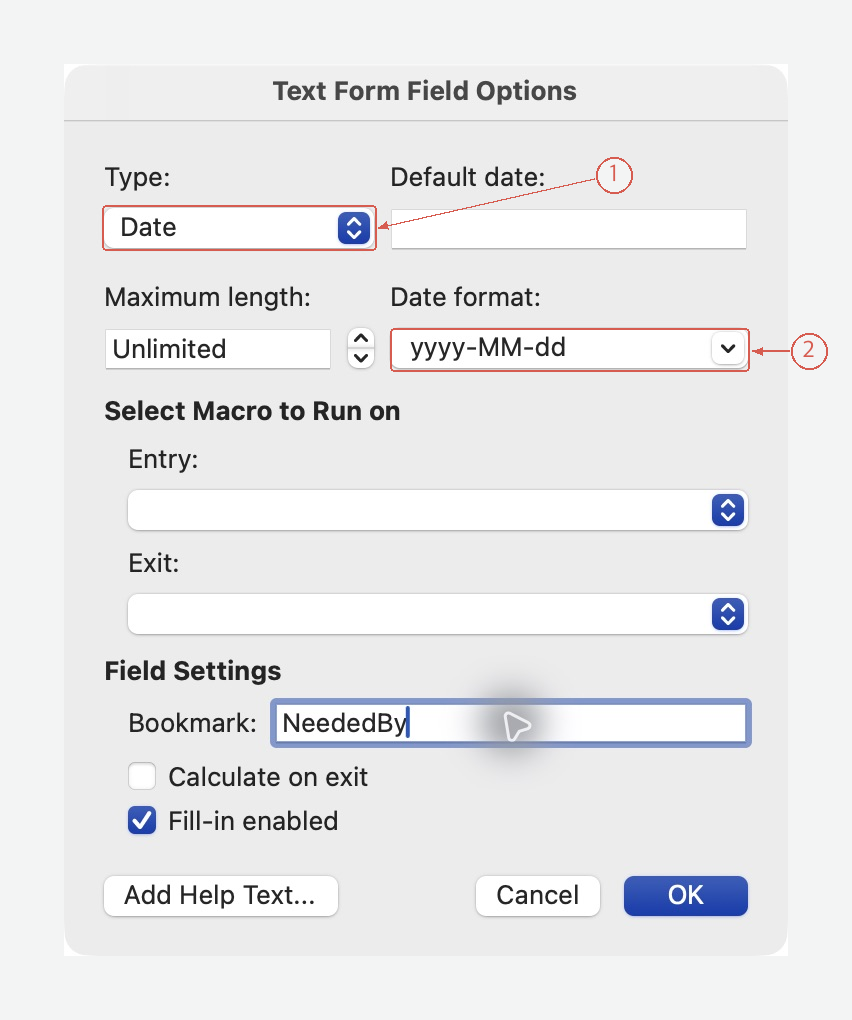
This is a typed date field, not a calendar picker. Give recipients the expected format in the form instructions. View full-size screen
A format setting is not a complete business-rule check. A valid-looking date can still be too early for the request.
4. Protect the form and fill out a test copy
- Choose Developer → Protect Form.
- Click the name field and enter
Alex Morgan. - Press Tab to move to the date field and enter
2026-10-26. - Move to the checkbox and test both its checked and unchecked states. The captured control uses an X.
- Save the DOCX, reopen it, and check that the entered values remain in the right fields.
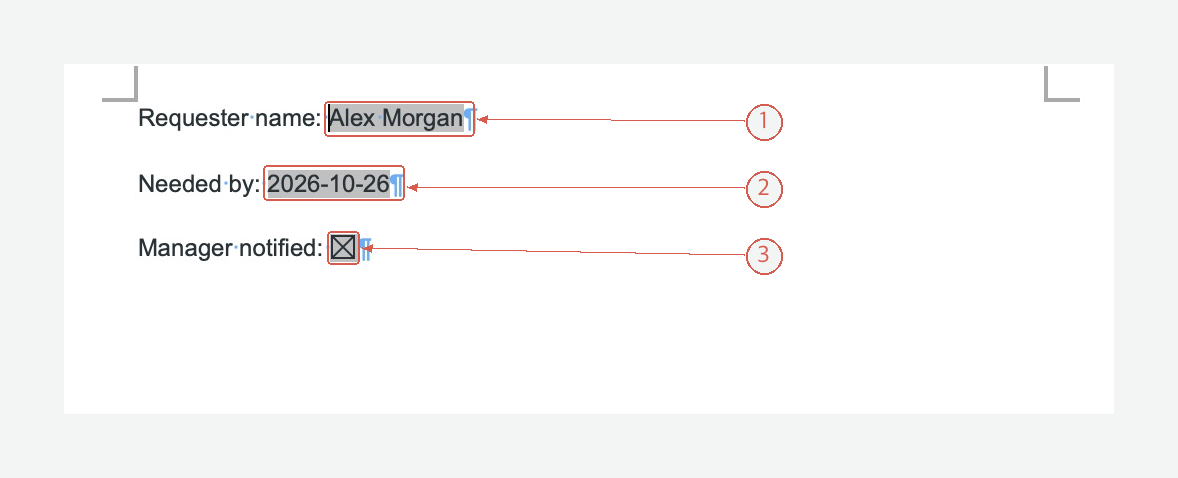
All three labels remain readable. The name and date were entered while Protect Form was on. View full-size screen
To edit the labels or field options, turn Protect Form off. Test the form again before sharing it. Keep an unfilled master as well as a completed test copy.
Will the exported PDF be fillable?
Do not assume so. A Word field is not a PDF form field. Test the actual file format and application the recipient will use.
The form opens on another platform
Mac and Windows expose different form-authoring tools. Test the saved DOCX in the recipient’s Word version rather than relying on matching toolbar names.
Make the instructions clear before building the form
Acrylic can help edit the labels and guidance in a DOCX:
Make each field label concise. Preserve the required information, distinguish required answers from optional notes, and flag instructions that could have two meanings.
Review the wording, then create and test the form fields in Word. Explore Acrylic
Official reference
- Microsoft: Create a form in Word that users can complete or print: use the macOS instructions.