How to insert a table in Word and format it for a report
Acrylic
Build a report table, set its width, align text and numbers, and repeat header rows across pages.
Spaces and tabs can make a few lines look like a table, but longer entries soon push the columns out of alignment. Use an actual Word table when each row has the same kinds of information.
These steps were checked in Microsoft 365 Word for Mac 16.94, with English menus. Windows and web menus differ. Work on a copy of your document. The practice table tracks three fictional tasks, with one header row and three data rows.
1. Insert the rows and columns you need
Use the Mac menu bar: Table → Insert → Table. Set Number of columns to 4, Number of rows to 4, and AutoFit to window. Click OK. 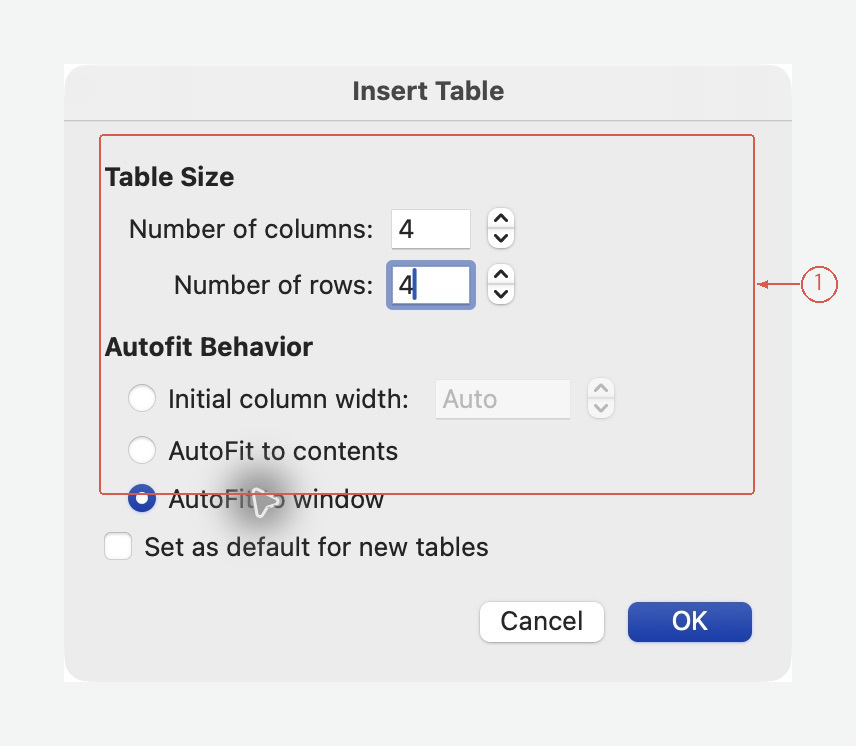
Four rows means one header row and three task rows in this example. View full-size screen Enter the following fictional plan:
| Task | Owner | Due date | Status |
|---|---|---|---|
| Check figures | Alex | October 21 | In progress |
| Review wording | Morgan | October 22 | Not started |
| Prepare final copy | Casey | October 23 | Not started |
Keep one type of information in each column. “Alex, Friday, almost done” in a single cell is harder to scan and update.
2. Fit the table to the writing area
- Click inside the table.
- Choose Table → AutoFit and Distribute → AutoFit to Window.
- Give the Task column more room by adjusting its boundary.
- If you want widths to stay put as you type, choose Table → AutoFit and Distribute → Fixed Column Width afterward.
AutoFit Window fits the table to the available width; it does not guarantee that every entry will fit on one line. Let descriptions wrap rather than shrinking all the text.
3. Format the header and values separately
Select the first row and use a clear header style or bold text. Keep task descriptions left-aligned. For a numeric table, right-align values that readers need to compare; keep units in the headings when possible.
Use Table → Table Properties → Table → Options to adjust space inside cells. Repeated spaces and blank paragraphs are unreliable substitutes for cell padding.
For a table that spans pages, select its first row and choose Table → Repeat Header Rows. To test this in the practice file, add enough sample rows to reach a second page. Check that the header appears there in print layout. A manually inserted page break inside the table can prevent the header from repeating across that break.
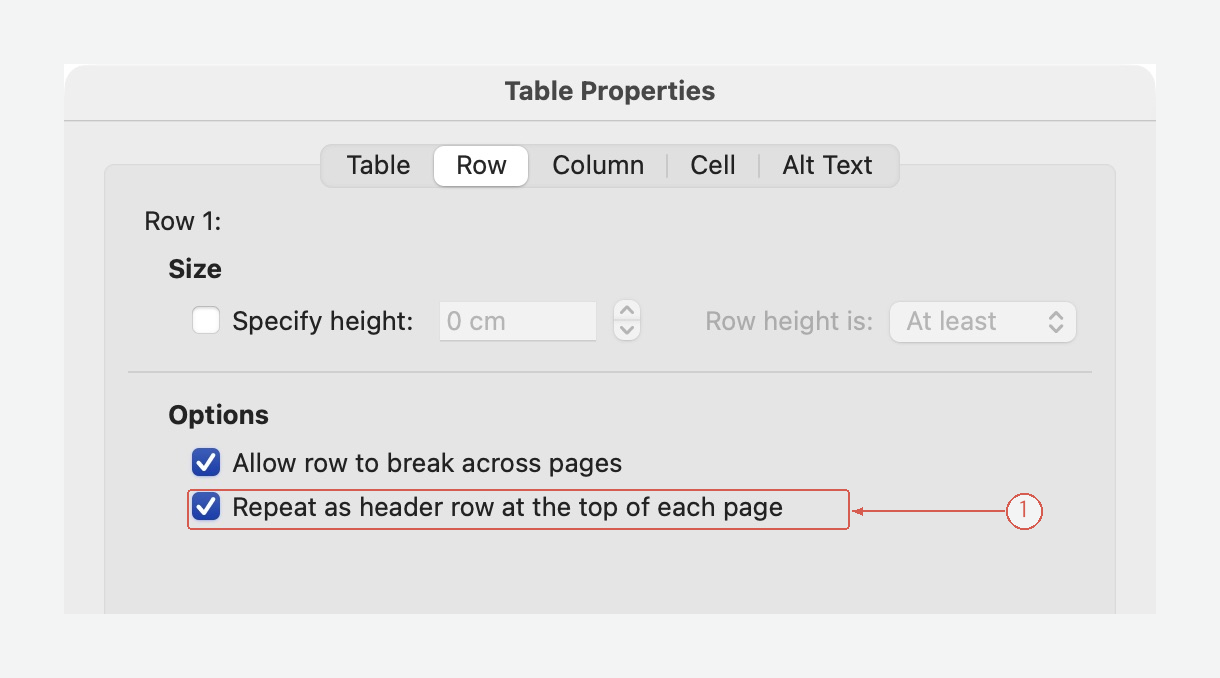
Select the first row with Table → Select → Row. In Table Properties → Row, verify this setting. This capture shows the setting; the short example itself fits on one page. View full-size screen
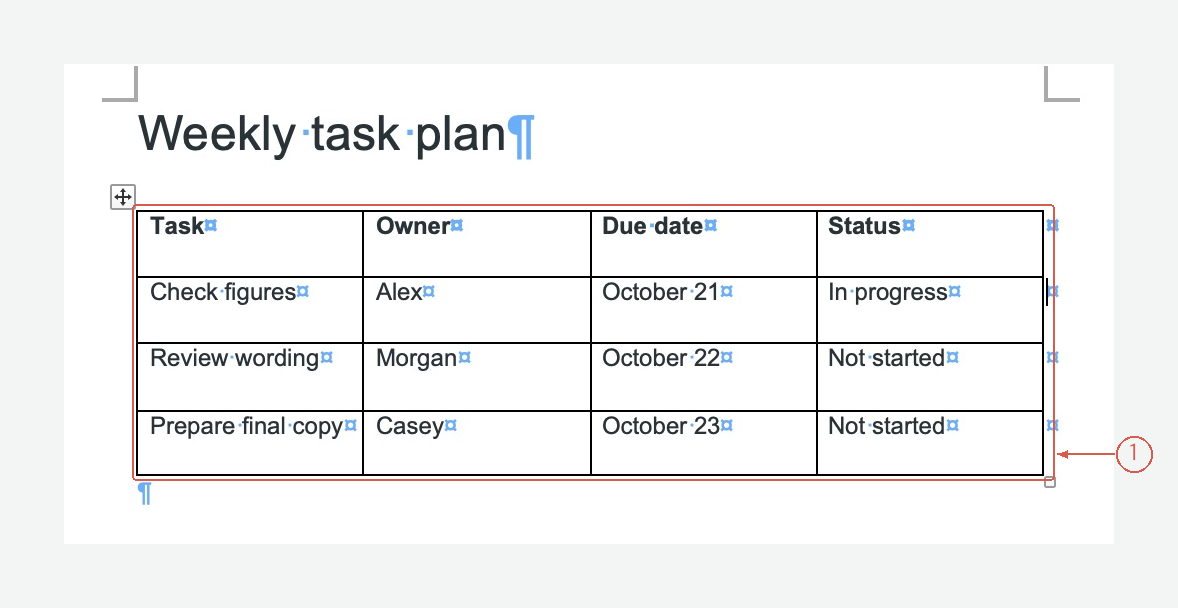
Check each owner, date, and status against its task. These are fictional practice entries. View full-size screen
4. Check the table after editing
Add a longer task description and confirm that the row expands without clipping text. If text is cut off, inspect the row height in Table Properties; an exact height may be too small.
Before sharing, check that every task has the right owner and date. A tidy table can still contain a value in the wrong row.
The table is centered but its text is not
Table placement and cell-text alignment are separate settings. Use Table Properties for the table's position, and the alignment commands in Table Layout for the contents of selected cells.
Turn notes into a table with Acrylic
When editing a DOCX, a focused request can help keep the information intact:
Organize these notes into Task, Owner, Due date, and Status. Preserve all names and dates. Leave missing values as “Not confirmed” and list questions below the table.
Check the row relationships, then finish the layout in Word. Explore Acrylic