How to lock an image in Word without breaking the layout
Acrylic
Use Fix Position on Page and understand what Lock Anchor does, with checks for text flow, deletion, and final output.
“Lock an image” can mean keeping it beside a paragraph, holding it at a page position, or stopping someone from editing it. Word's layout controls address the first two. Lock Anchor is not a security lock, and it does not make an image impossible to move or delete.
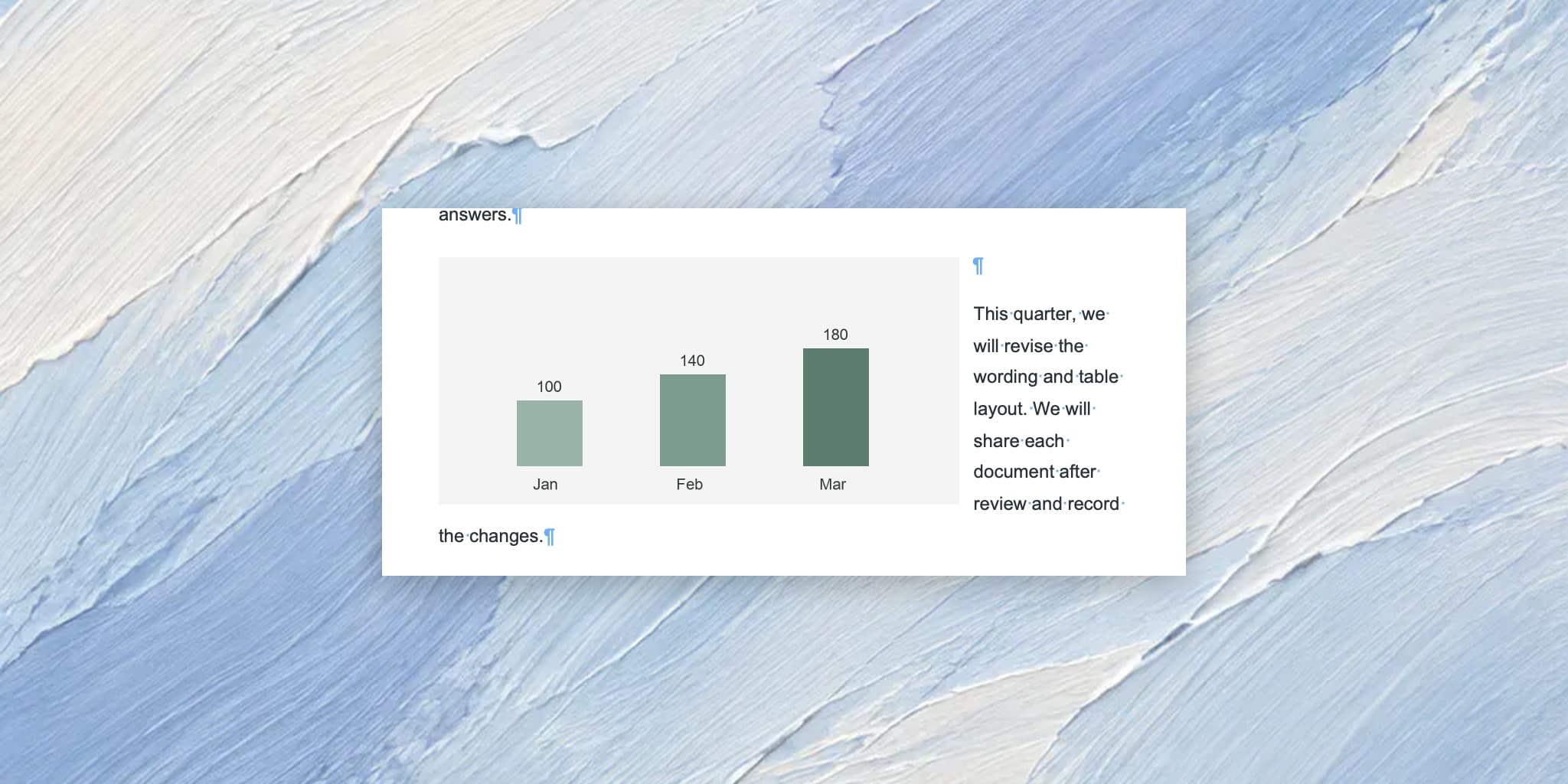
These steps were checked in Microsoft 365 Word for Mac 16.94, with English menus. Windows and web menus differ. Work on a copy of your document. Use the practice chart to test the behavior.
Choose how the image should behave
| Your goal | Starting choice |
|---|---|
| Keep the image in the reading order | In Line with Text |
| Let it follow a nearby paragraph | A wrapping mode with Move with Text |
| Hold a position relative to a page | A wrapping mode with Fix Position on Page |
A floating image remains associated with an anchor paragraph. Fixing its page position does not remove that relationship.
1. Use a floating wrapping mode
- Select the chart.
- Open Picture Format → Wrap Text → More Layout Options.
- In Text Wrapping, choose Square.
- Open the Position tab.
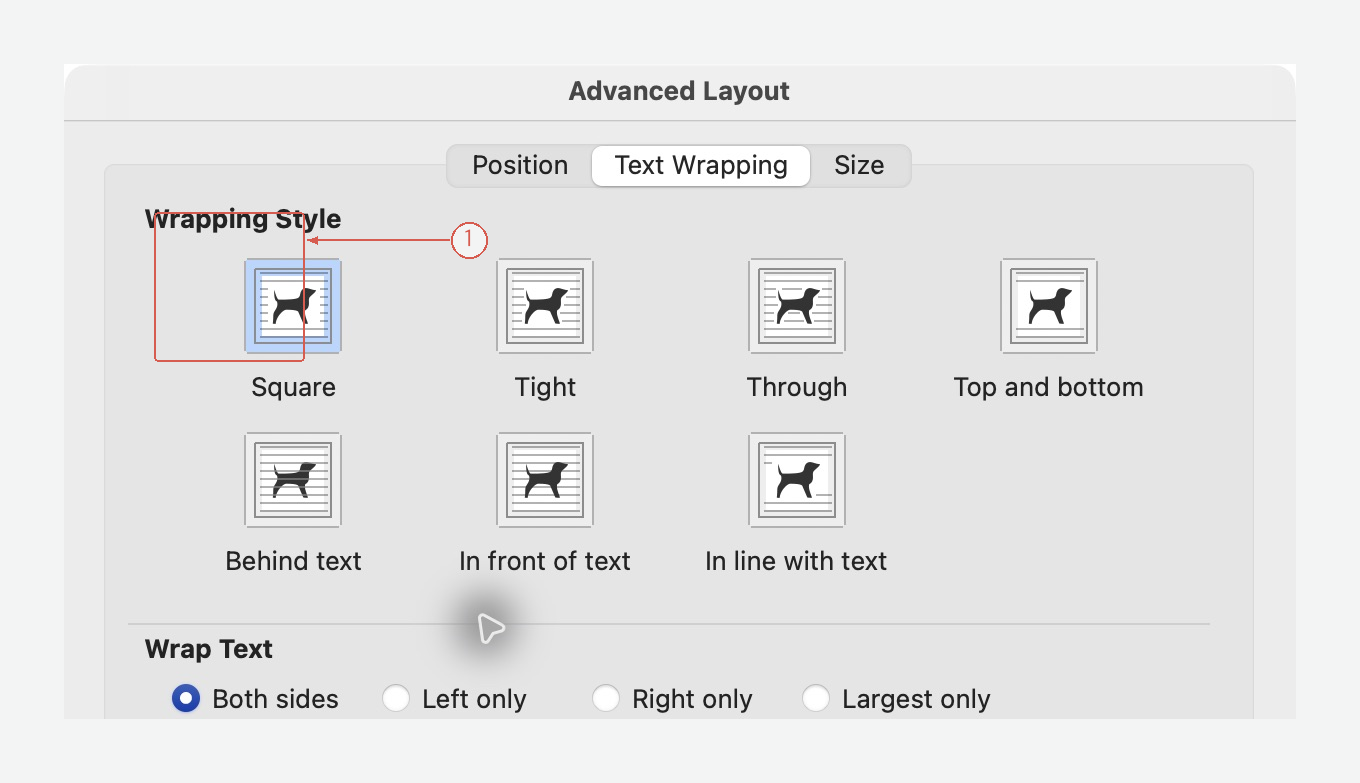
Inline images do not use these floating position and anchor settings. View full-size screen
2. Set the reference and the anchor separately
The sample chart is 12 cm wide. To reproduce the capture, set:
| Setting | Practice value |
|---|---|
| Horizontal absolute position | 0.01 cm to the right of Column |
| Vertical absolute position | 7 cm below Page |
| Move object with text | Off |
| Lock anchor | On |
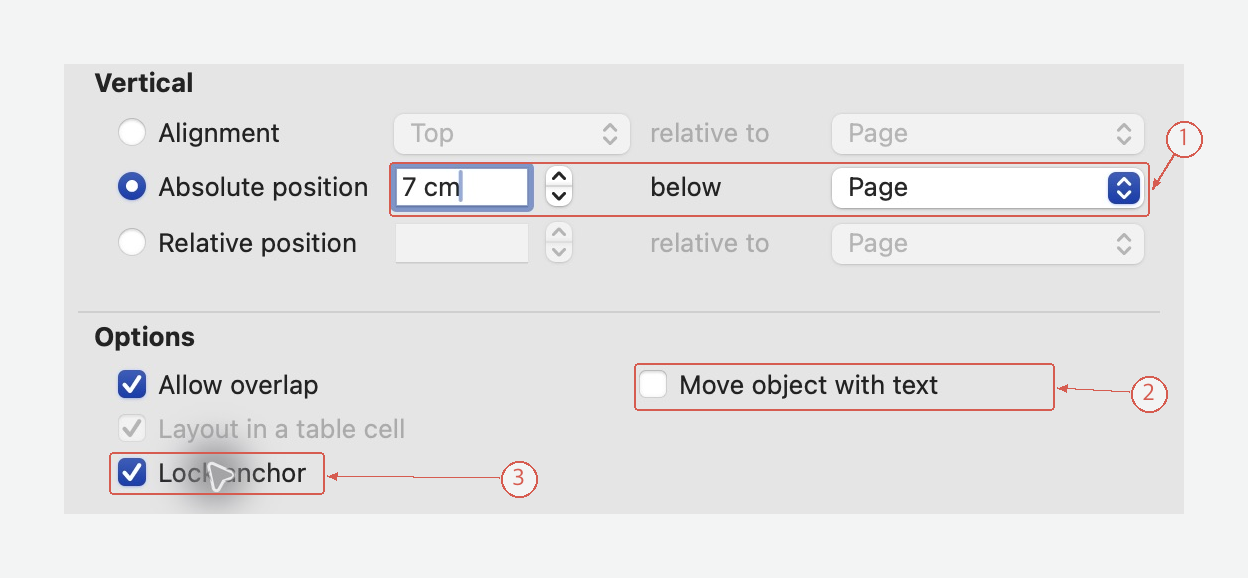
These are practice coordinates for this document. Check the reference beside each coordinate; Column and Page are different references. View full-size screen
The Fix Position on Page command in Wrap Text is another way to stop the picture moving with ordinary text edits. In this dialog, check the position references and Move object with text directly. Click OK.
Lock anchor keeps the association with the anchor paragraph from being reassigned by dragging. It does not make the image or its paragraph impossible to delete. Turn on Home → ¶ and select the image to inspect its anchor.
3. Test the edits that will happen in the report
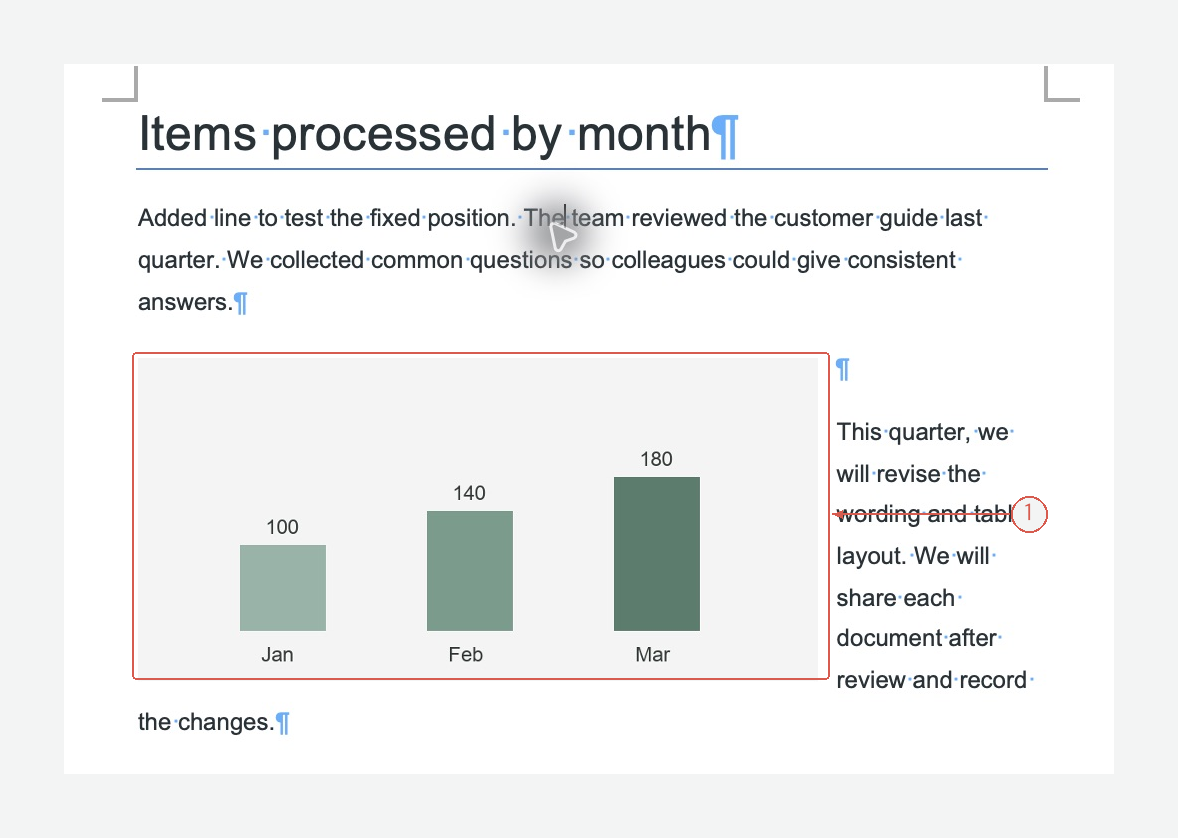
The text reflows around the square-wrapped chart. It still needs a layout check; a fixed position can leave a narrow text column beside a wide image. View full-size screen
Add a sentence above the image, then undo it. Check the image position and the surrounding text. Also inspect what happens when the anchor paragraph moves to another page; a floating image is still part of the document's flow and can change pages with its anchor.
Before sharing, inspect the PDF or print preview. Check for text covered by the image and captions left on another page.
Position controls are unavailable
Check whether the image is In Line with Text. Inline images behave like characters and do not use floating-object anchors. The web app also has limits when editing some desktop image layouts.
You need an image that follows the explanation
Use In Line with Text in its own paragraph. Fixed page coordinates may be the wrong choice for a tutorial image that should stay after a particular instruction.
Settle the content before fine-tuning placement
If the text is still changing, Acrylic can help edit the DOCX first:
Organize the explanation into short steps. Preserve figure references and keep each description beside the relevant section. Flag descriptions that need checking against an image.
Then finish the anchor and position settings in Word. Explore Acrylic