How to number pages in Word and skip the cover page
Acrylic
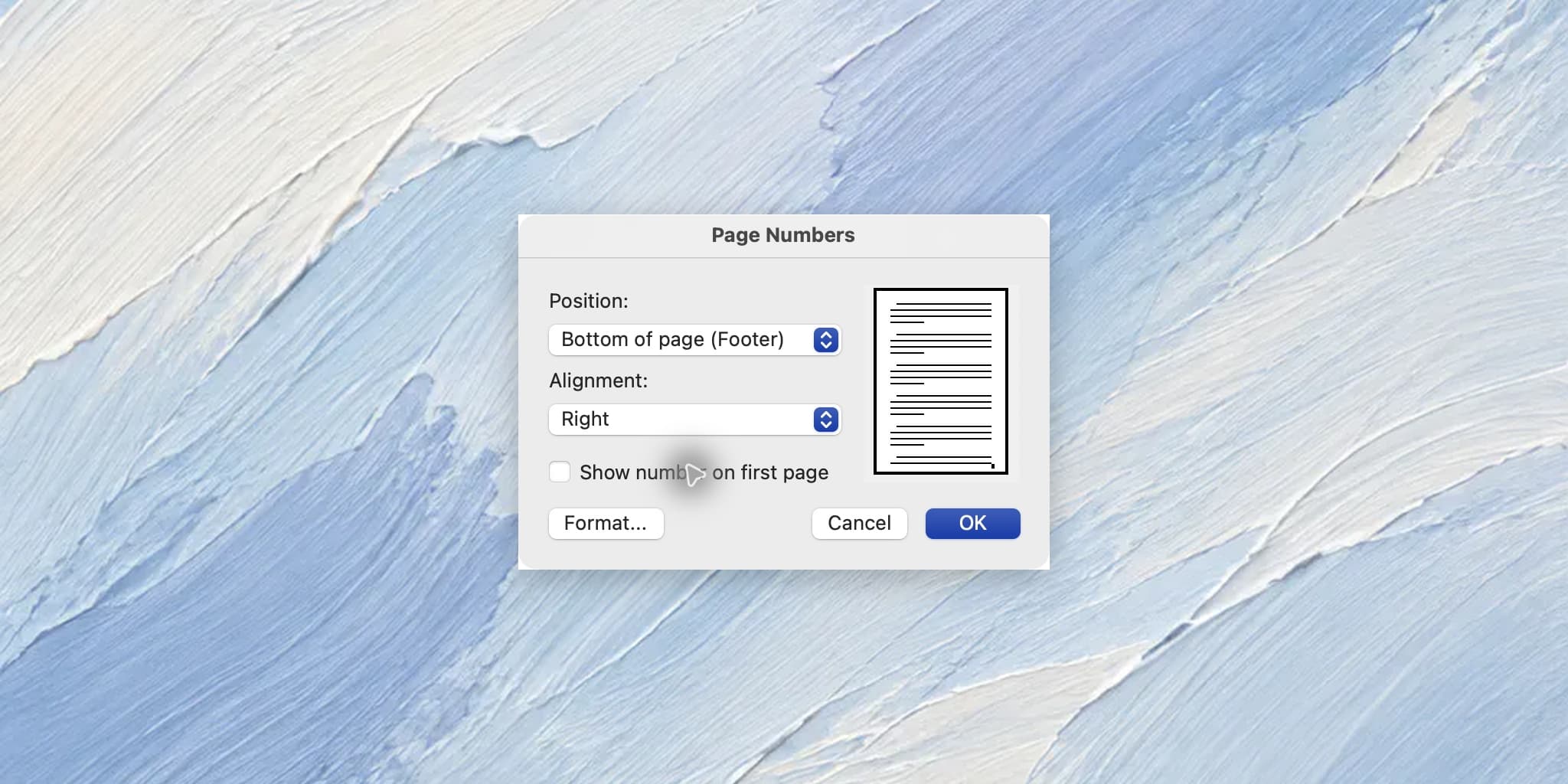
Use the Mac Page Numbers dialog to hide one cover-page number, start the section at 0, and verify that the body displays 1 and 2.
A report can start its visible numbering at 1 while leaving the cover unnumbered. Hiding the first number and choosing the starting value are separate settings.
These steps were checked in Microsoft 365 Word for Mac 16.94, with English menus. Windows and web menus differ. Work on a copy of your document. This example has one cover page followed by two body pages in the same section. A report with several front-matter pages needs a different section setup.
1. Prepare three simple pages
In a blank practice document, type Quarterly report, 2026 Q4, and Acrylic on the cover. Use Command+Return for a page break. On page two, type 1. Progress and a short paragraph. Add another page break and type 2. Next steps with another paragraph.
Turn on Home → ¶ to inspect the breaks. Use ordinary page breaks for this one-section example. Keep a copy before changing an existing report with multiple sections or existing page numbers.
2. Insert a page number and hide it on the cover
- Choose Insert → Page Numbers from the Mac menu bar.
- Set the position to Bottom of page (Footer) and alignment to Right for this example.
- Clear Show number on first page.
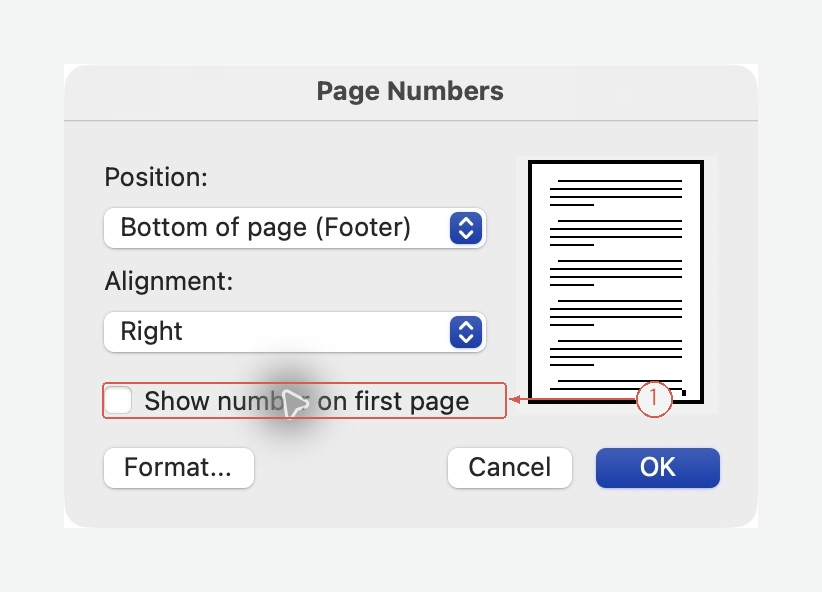
This hides the first page’s number in the section. It does not, by itself, make the next number 1. View full-size screen
3. Start this section at 0
- Click Format in the Page Numbers dialog.
- Keep the numeric format
1, 2, 3, …. - Select Start at and enter
0. - Confirm both dialogs.
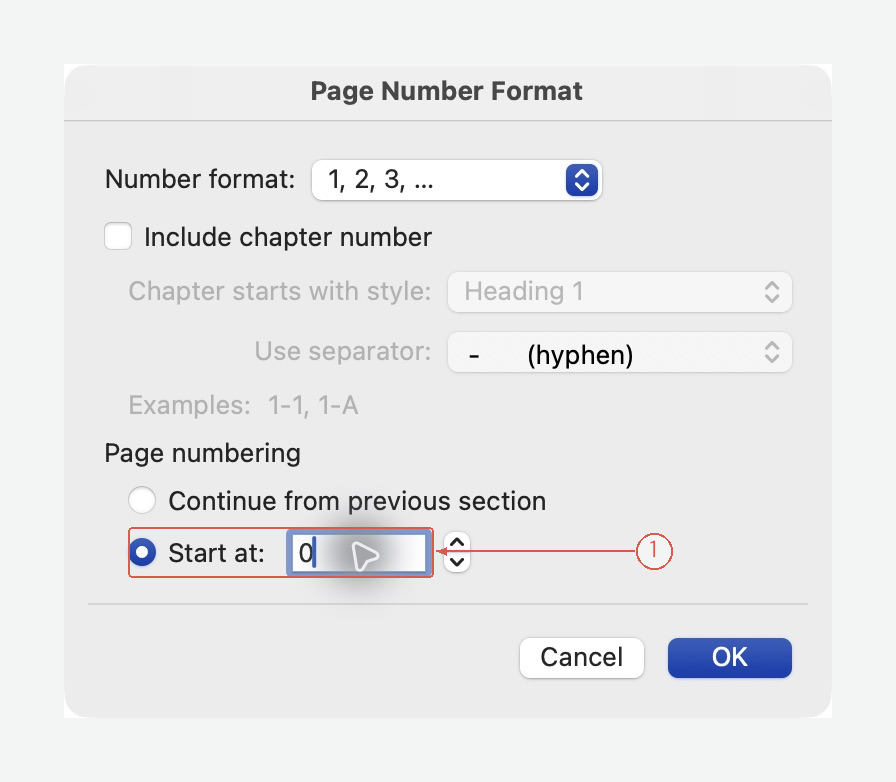
The cover counts as 0 but its number is hidden. The next two physical pages display 1 and 2. View full-size screen
4. Check the first two body pages
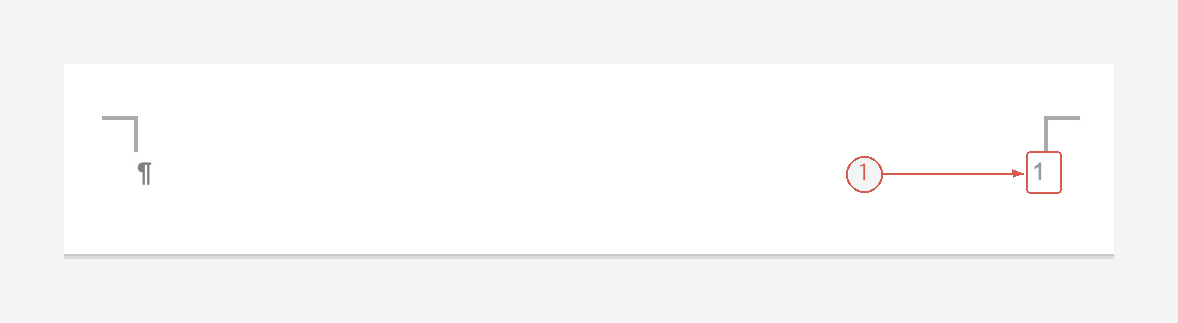
This is the footer of the physical second page. The number is a Word PAGE field, not typed text. View full-size screen
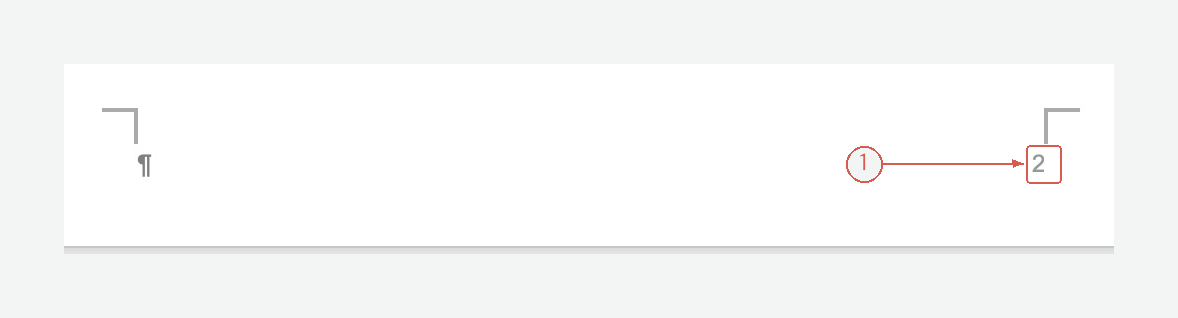
The physical third page continues at 2. Check the cover too: it should have no visible number. View full-size screen
Save the document, then inspect the print or PDF output. Check the sequence as well as the number’s alignment and distance from the page edge.
The first body page shows 2
Hiding the cover number alone can leave the numbering starting at 1 on the cover. Reopen Format and check the start value for the intended section.
There is a cover and a contents page before the body
Do not use start-at-0 as a general solution for several front pages. Create a Section Break (Next Page) before the body, unlink that section’s footer from the previous section, and start its numbering at 1. Headers and footers have separate links. See Microsoft’s reference below for that different setup.
Every page shows the same number
Check that you inserted a page-number field rather than typing a digit. Also inspect the section settings if the document contains more than one section.
Put the report in order before numbering it
Acrylic can help edit the DOCX content before the final page layout:
Keep the source document. Organize this report into summary, findings, and next steps. Preserve figures and quoted text, and list any headings you change.
Review the content, then finish the numbering and contents page in Word. Explore Acrylic