How to remove extra spaces in Word without joining words

Acrylic
Find repeated spaces carefully, distinguish tabs and nonbreaking spaces, and avoid deleting meaningful spacing in a Word document.
Text copied from email or a PDF often contains repeated spaces. Before replacing them, check whether the gap is actually made of spaces. Tabs, paragraph spacing, and justified alignment can create a similar appearance.
These steps were checked in Microsoft 365 Word for Mac 16.94, with English menus. Windows and web menus differ. Work on a copy of your document. Be especially careful with tables, code, and intentionally spaced examples.
1. Show the characters behind the gap
Turn on Home → ¶. Ordinary spaces appear as dots, tabs as arrows, and paragraph ends as paragraph marks.
| What you see | What to fix |
|---|---|
| Several space dots between words | Repeated spaces |
| A tab arrow | Tab stops or indentation |
| A large gap with no extra characters | Paragraph alignment or character spacing |
Do not replace every gap with nothing. That would turn project status into projectstatus.
2. Replace two ordinary spaces with one
For practice, type a sentence with two spaces between “draft” and “report,” then another with three spaces in the same position.
- Use the Mac menu bar: Edit → Find → Advanced Find and Replace. Open the Replace tab.
- In Find what, press Space twice.
- In Replace with, press Space once.
- Open the additional options and make sure Use wildcards is off. Clear any unintended formatting criteria.
- Use Find Next and Replace to inspect the first few matches.
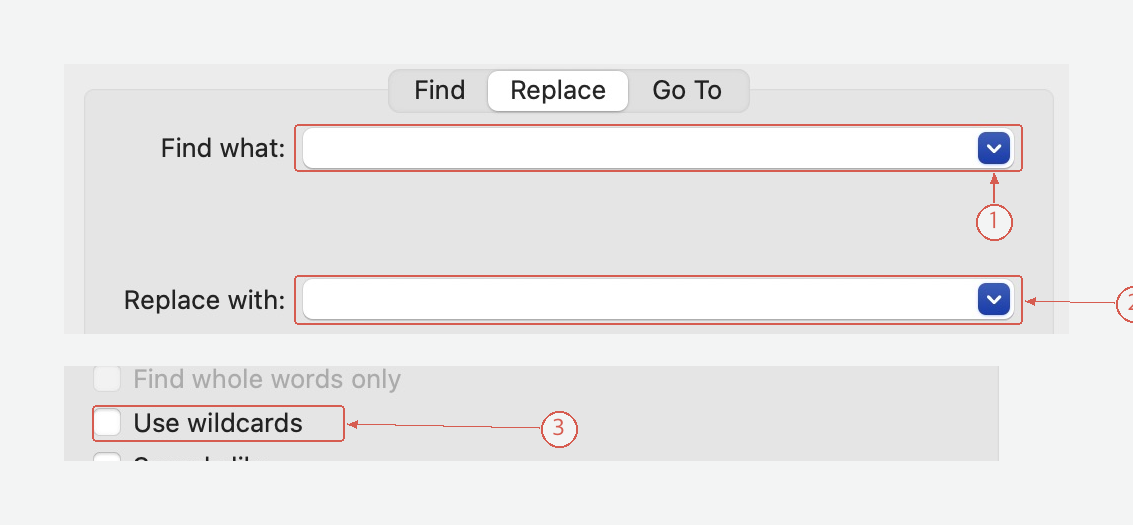
The spaces look blank in the fields. Enter two ordinary spaces above and one below. These are two crops from the same dialog; Use wildcards is off. View full-size screen
After checking a few matches, use Replace All only if the remaining matches in your chosen scope should also change. If you selected only part of the document and Word asks whether to search the rest, choose No to keep the replacement within that selection. Repeat the search until no double spaces remain; a run of three or more spaces may need another pass.

The two practice sentences now keep their word boundary with one ordinary space. View full-size screen
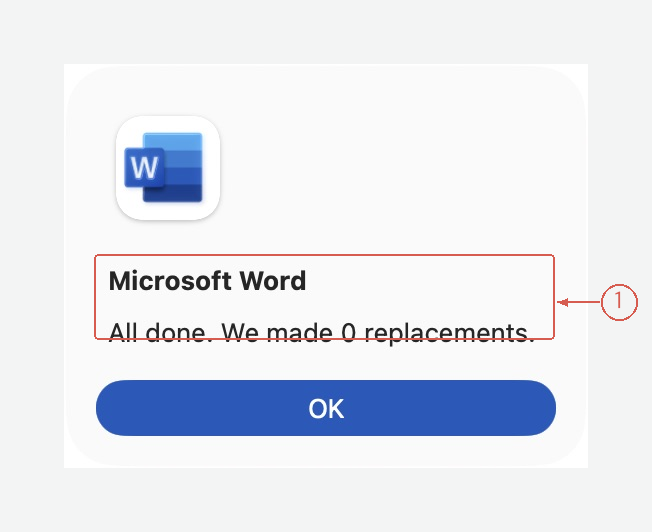
A further pass finds no remaining double spaces in this practice document. Counts depend on the starting text. View full-size screen
3. Handle special spacing as a separate decision
A nonbreaking space keeps connected text together across a line break. You may want it between a number and its unit, or within a name. In advanced Find and Replace, the Special menu can help locate special characters. Do not turn all of them into normal spaces unless that is the intended result.
Leading spaces used as makeshift indentation need a separate cleanup. Replace that layout with paragraph indentation rather than removing all spaces throughout the document.
4. Review more than the replacement count
Check a few paragraphs, table cells, names, units, and any intentionally spaced text. Search again for double spaces, then inspect the print layout.
Words still look far apart
If there is only one space between them, check justified or distributed alignment. A short line can spread across the available width even when there are no duplicate spaces.
Whole blank lines remain
Those are paragraph breaks, not ordinary spaces. Review them separately so that headings and paragraphs do not collapse into one another.
Clean up wording after the spacing is settled
Acrylic can help you edit the DOCX without treating every visual gap as text to delete. For example:
Tighten repeated wording in these paragraphs. Preserve names, numbers, units, and technical terms. Keep paragraph boundaries and flag any sentence whose meaning is unclear.
Review the wording and layout before sharing the document. Explore Acrylic